Managing returns shouldn’t be a manual bottleneck for your growing store. We are thrilled to announce that Synctrack Returns & Exchanges now officially integrates with Shopify Flow.
The best part? This powerful automation engine is available on all plans, including our Starter Plan.
Contents
By connecting Synctrack return events directly to Shopify Flow, you can move away from manual follow-ups and build a self-operating return ecosystem. This integration allows you to trigger specific actions in Shopify or third-party apps based on real-time return data.
Automate Event Responses: Trigger actions the second a return is approved, items are received, or an exchange order is created.
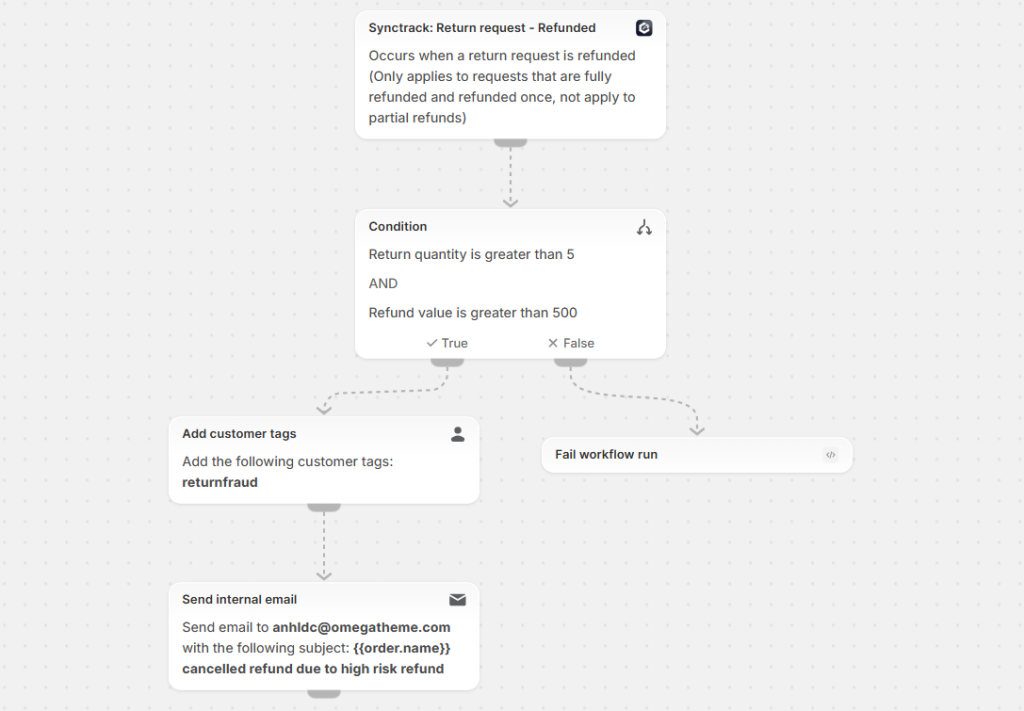
Detect & Flag Return Fraud: Automatically tag customers or orders when a shopper submits five or more return requests in six months to alert your team for manual review.
Professionalize Communication: Streamline email automation and reduce manual follow-ups by syncing return status changes to your marketing tools.

To help you get started, here are three high-impact templates you can set up today:
1. The “Review Requester” (Synctrack + Judge.me) When a return is resolved or refunded, automatically trigger Judge.me to send a review request. This ensures you capture feedback while the experience is fresh.
2. The “Fraud Shield” If a customer has a return history of 5+ requests, auto-tag the customer as “High Risk” and notify your team to inspect for potential return abuse.
3. The “Fulfillment Alert” Notify your warehouse team immediately when a return request status changes to “Items Received,” so they can prioritize the inspection and restocking process.
Setting up your first flow is simple and requires no coding:
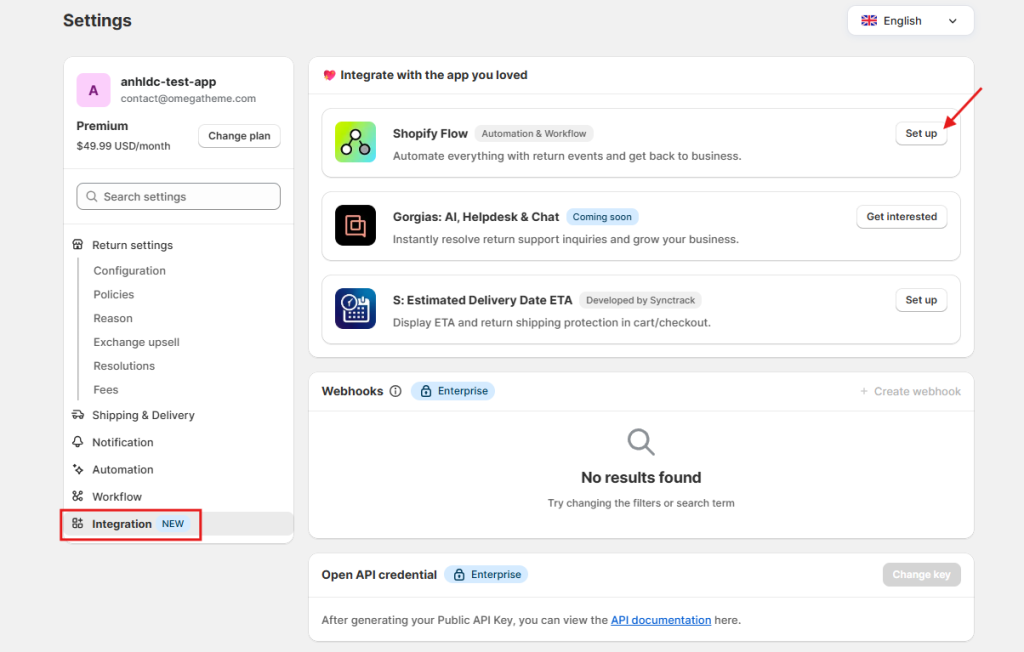
Enable Integration: In Synctrack, go to Settings → Integration and click “Set up” in the Shopify Flow section.
Install Shopify Flow: If you haven’t already, click “Install” to add the Shopify Flow app to your store.
Build Your Flow: In the Shopify Flow app, click “Create workflow,” choose a Trigger from Synctrack, add your Conditions, and select an Action.
Go Live: Click “Turn on workflow” to activate your automation.
For details, check out our guidelines

Need a hand building your first template? Our support team is happy to help you pre-build workflows in your store. Reach out via live chat or email us anytime!