Picture this: a shopper finds a product they love on your Shopify store. They’re ready to buy – but they can’t tell when it’ll arrive. So they leave and buy from a competitor who shows a clear delivery date. That’s a sale you didn’t have to lose.
A Shopify estimated delivery date (EDD) solves this problem. When shoppers can see a realistic delivery window right on the product page or at checkout, they feel more confident. They’re more likely to complete the purchase – and less likely to email your support team asking, ‘Where’s my order?’
This guide covers everything you need to know: what EDD means, how Shopify handles it natively, how to add it with a bit of code, and which Shopify EDD apps are worth your time.
An estimated delivery date (EDD) is the date range you show shoppers for when their order is expected to arrive. It’s different from a shipping date – and that distinction matters.
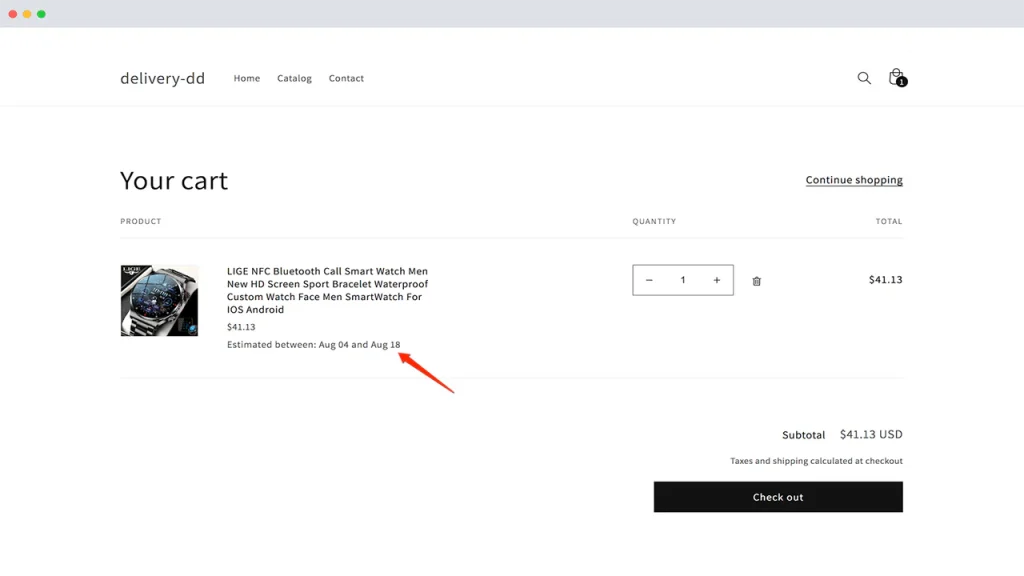
Here’s how the pieces fit together:
You may also see ‘ETA’ (Estimated Time of Arrival) used interchangeably with EDD in app listings and Shopify documentation. They mean the same thing in this context.
The goal is simple: give shoppers a realistic, honest delivery window before they buy. It builds trust, reduces support tickets, and increases conversions.
Yes – but with conditions. Shopify has built-in delivery date features, and they work well within certain limits. Here’s a breakdown of what’s available out of the box.
You can set a processing time in your Shopify admin under Settings > Shipping and delivery. This tells Shopify how long it typically takes you to fulfill an order before handing it off to a carrier.
Shopify recommends keeping processing time to two business days or fewer. This helps ensure your store qualifies to show faster delivery dates at checkout.
Manual delivery dates combine your processing time with a carrier’s transit time. When set up correctly, Shopify shows a delivery date range at checkout – not just a shipping window.
There are a few important limits to know:
Automated delivery dates are available for stores in the United States and select European countries. Shopify calculates these automatically based on historical fulfillment and shipping data.
To qualify, your store needs:
If Shopify can’t generate an automated estimate, it falls back to showing transit time or fulfillment time instead.
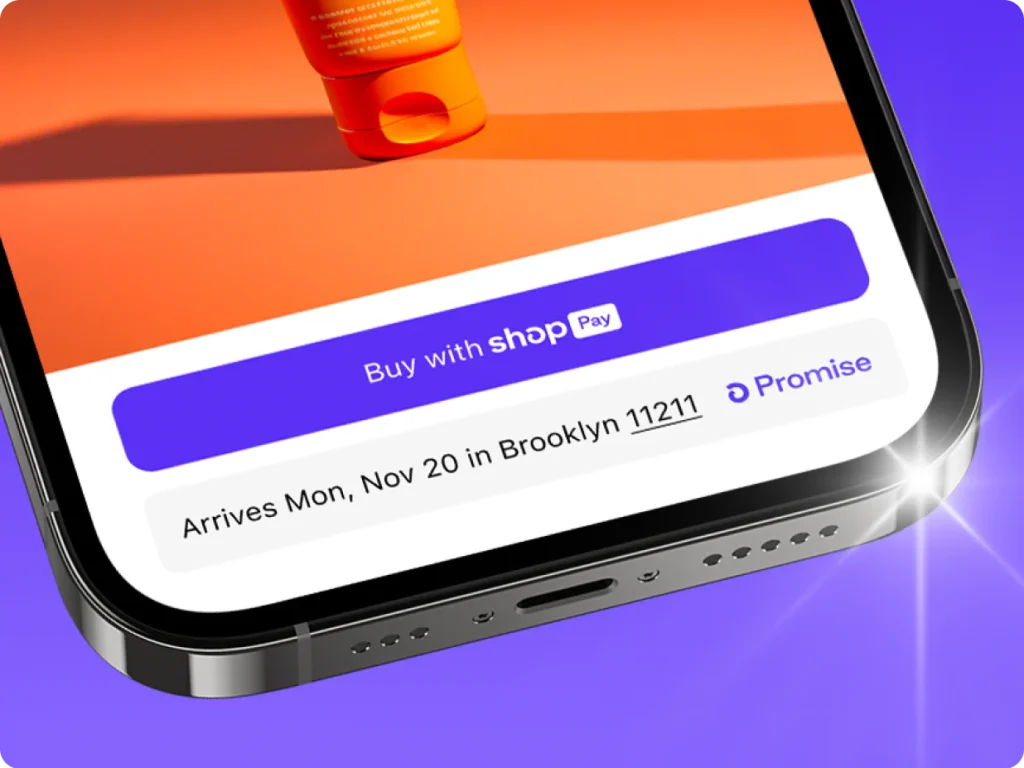
Shop Promise is a Shopify program that displays delivery dates and trust badges on product pages, at checkout, and inside the Shop app. It’s based on your store’s historical fulfillment and shipping performance – not a carrier guarantee.
Shop Promise is only available for domestic US orders expected to arrive within five calendar days. Your store also needs to meet performance requirements and have Shop Pay activated.
The bottom line: Shopify’s native features are useful for showing delivery dates at checkout. But many merchants still need a theme-level solution or a Shopify EDD app to display estimates on product pages, in the cart drawer, or on the order confirmation page.
There are three main ways to add EDD to your Shopify store. The right approach depends on your technical comfort level, your store plan, and where you want delivery dates to appear.
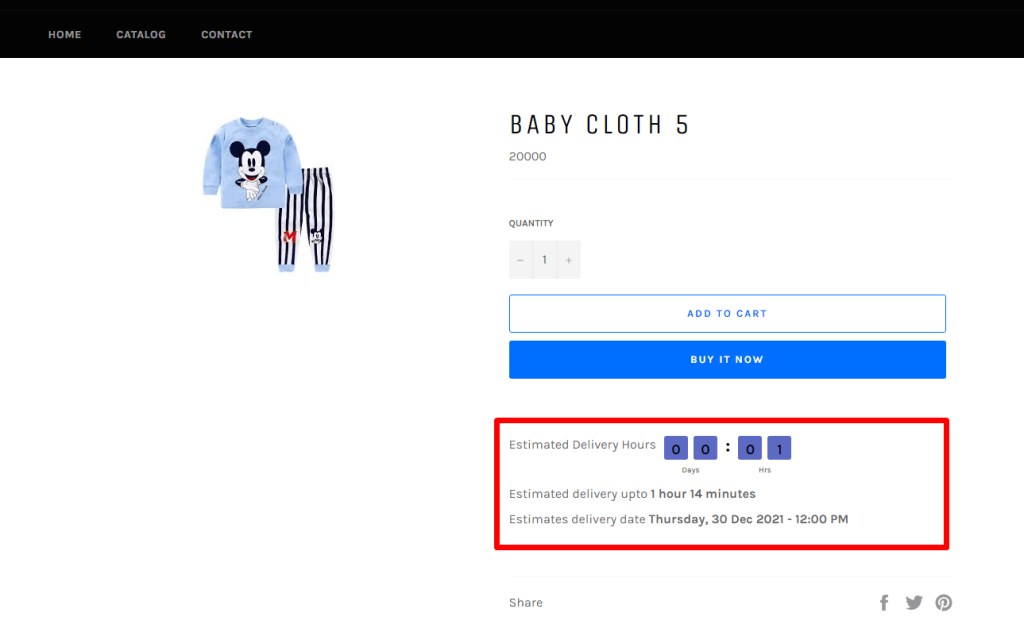
If you just want delivery dates to show at checkout, start here. In your Shopify admin:
This works well for stores that are eligible for manual or automated delivery dates. But it won’t show EDD on your product pages or in the cart.
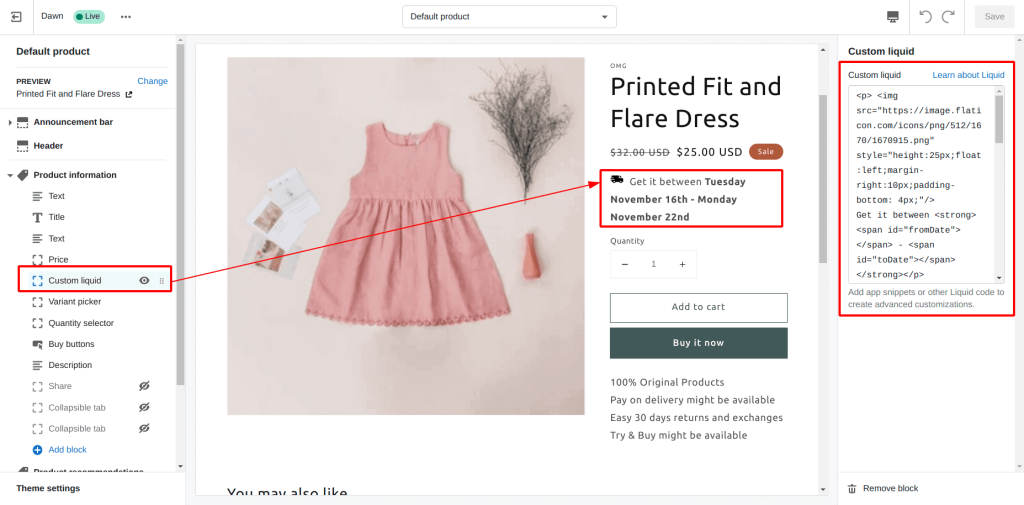
This approach uses Shopify metafields and JavaScript to calculate and show a delivery date range on your product page. It’s a solid DIY option if you’re comfortable editing theme code.
Step 1: Create two product metafields:
Step 2: Add this Liquid + JavaScript snippet to your product template:
{%- comment -%}
Product page EDD — requires product metafields:
custom.handling_days_min and custom.handling_days_max
{%- endcomment -%}
{% assign min_days = product.metafields.custom.handling_days_min.value | default: 3 %}
{% assign max_days = product.metafields.custom.handling_days_max.value | default: 7 %}
<div class=”edd-widget” data-min-days=”{{ min_days }}” data-max-days=”{{ max_days }}”>
<strong>Estimated delivery:</strong>
<span class=”edd-range” aria-live=”polite”></span>
<div class=”edd-disclaimer”>Dates are estimates and may change due to carrier delays.</div>
</div>
<script>
(function () {
const el = document.currentScript.previousElementSibling;
if (!el || !el.classList.contains(‘edd-widget’)) return;
const minDays = parseInt(el.dataset.minDays, 10);
const maxDays = parseInt(el.dataset.maxDays, 10);
const addDays = (date, days) => { const d = new Date(date); d.setDate(d.getDate() + days); return d; };
const now = new Date();
const from = addDays(now, minDays);
const until = addDays(now, maxDays);
const fmt = new Intl.DateTimeFormat(undefined, { month: ‘short’, day: ‘numeric’ });
el.querySelector(‘.edd-range’).textContent = `${fmt.format(from)} – ${fmt.format(until)}`;
})();
</script>
This snippet reads the handling days from your product metafields and calculates a delivery range in the shopper’s local timezone.
Important limitations: This example doesn’t account for business-day logic, cutoff times, holidays, or destination-based transit times. For that level of accuracy, you’ll want to use an app.
Shoppers also want to see a delivery estimate in the cart before they commit. You can add a cart-level estimate using Liquid to loop through cart items and find the item with the longest handling time.
{% assign max_days = 0 %}
{% for item in cart.items %}
{% assign item_days = item.product.metafields.custom.handling_days_max.value | default: 0 %}
{% if item_days > max_days %}{% assign max_days = item_days %}{% endif %}
{% endfor %}
{% if max_days > 0 %}
{% assign seconds = max_days | times: 86400 %}
{% assign est = ‘now’ | date: ‘%s’ | plus: seconds | date: ‘%b %d’ %}
<p class=”cart-edd”><strong>Estimated delivery by:</strong> {{ est }}</p>
{% endif %}
One important note: Liquid’s now value can be cached, which means it may not always reflect the real current time. For live, accurate date calculations, it’s better to use JavaScript on the client side.
Automated delivery dates let your store show customers a specific delivery date at checkout – like “Estimated delivery Mon, Jun 30” – instead of a vague transit time range. This gives shoppers more confidence and helps reduce cart abandonment.
Once active, delivery dates appear in these places:
Shopify looks at your past fulfillment history and typical carrier transit times to predict when an order will arrive. It’s not a carrier guarantee – it’s an estimate based on your store’s real data.
A few things to know:
Your store needs to:
Each order also needs to:
A few important things to keep in mind:
Shop Promise is a Shopify program that shows customers a guaranteed delivery date – plus a trust badge – on your product pages, at checkout, and in the Shop app.
Think of it as Shopify telling your shoppers: “This store ships fast. We back it up.”
The best part? It’s completely free for you and your customers.
So, what happens when an order is late? If a Shop Promise order arrives after the promised date, the customer gets $5 in Shop Cash to spend in the Shop app. Shopify handles this – it doesn’t come out of your pocket.
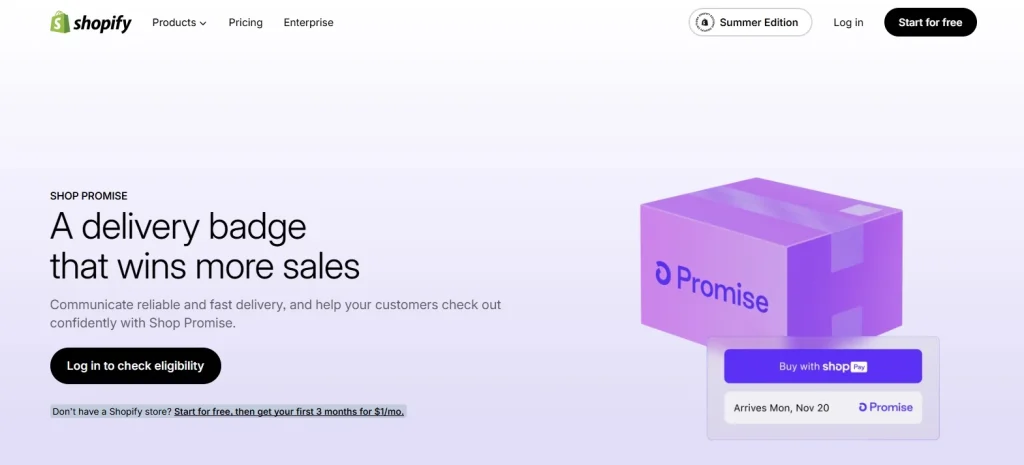
Basically, you can’t turn Shop Promise on yourself. Shopify decides who qualifies.
Shop Promise is only available to the top 1% of Shopify merchants who ship fast and reliably. When your store qualifies, Shopify sends you a notification in your admin. That’s when you can activate it.
To be considered, your store needs to check all of these boxes:
Even if your store qualifies, some orders are automatically excluded:
You’ll only see this option after Shopify notifies you that you’re eligible.
That’s it. Shop Promise goes live in your store right away.
Note: The badge won’t show on every product or every order. If Shopify can’t reliably predict a delivery within 5 days, no date or badge is shown – even if Shop Promise is active.
To turn it off:
You can turn it back on anytime, as long as your store still meets the requirements.
Our tip: Do this before you activate
Check your shipping rate names. If any of them include a specific time frame – like “Delivers in 2–3 days” – remove it. Shop Promise already shows its own delivery date, so having two different timeframes visible at the same time confuses shoppers.
Use simple names like “Standard Shipping” or “Express” instead.
You can run both Shop Promise and automated delivery dates together at the same time. Here’s how it works:
This way, shoppers always see some kind of delivery estimate – with or without the badge.
These are two separate features. Here’s a quick comparison:
| Automated Delivery Dates | Shop Promise | |
| What it shows | A calculated delivery date | A delivery date + trust badge |
| Requires Shop Pay? | No | Yes |
| Includes a delivery guarantee? | No | Limited guarantee for eligible orders |
| Available to all stores? | Basic plan and up | Eligibility requirements apply |
You can run both at the same time. If an order qualifies for Shop Promise, that badge shows first. If it doesn’t qualify, automated delivery dates take over.
You’ve set up your store. Your products look great. But your inbox keeps filling up with the same question: “When will my order arrive?“
It’s frustrating – and it’s costing you more than you think.
Every support ticket takes time to answer. Every unanswered question is a shopper who second-guesses their purchase. And every vague shipping message – “Ships in 3–5 business days” – is a reason for someone to close the tab and buy elsewhere.
The problem isn’t your shipping speed. It’s that shoppers can’t see it.
Without a clear delivery date, shoppers hesitate. They second-guess. Then they leave and buy from a store that shows it upfront. Meanwhile, your support inbox fills up with shipping questions that eat into your time.
The fix is simple, use Synctrack: Estimated Delivery Date ETA.
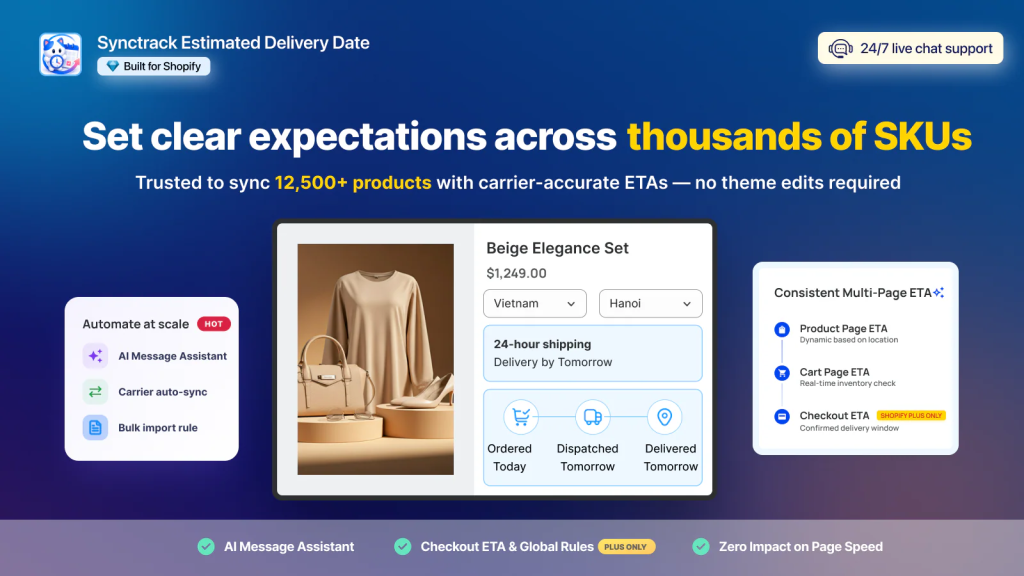
Synctrack EDD is an app that automatically shows customers their expected delivery date – on product pages, in the cart, at checkout, and in order confirmation emails.
No more guessing. No more support tickets asking when an order will arrive. Here’s what you get:
It’s a good fit for stores with multiple products, multiple shipping zones, or customers who need a delivery date before they’ll commit to buying.
Setting up a Shopify estimated delivery date is one of the most effective things you can do to improve shopper confidence and reduce post-purchase anxiety. Whether you’re using Shopify’s native features, a custom code snippet, or a dedicated Shopify EDD app, the key is accuracy – show a realistic range and make sure your operations can back it up.
Start with Shopify’s native settings if you’re on a standard plan and want quick wins at checkout. Add theme-level code or an app when you need product-page and cart-level EDD. And if you’re on Shopify Plus, look for apps that offer checkout UI extensions to give shoppers delivery clarity at every step of the funnel. Good luck!