When dispute work is spread across gateways and inboxes, it is hard to see what needs attention while a case is still open. Many merchants learn their dispute rate is too high only after a gateway raises fees or holds funds.
Synctrack PayPal Chargebacks now includes Dispute Analytics v2. Shopify dispute analytics shows each connected gateway’s rate next to its own limit, then lists open cases and period results in the same view, so you can see what needs a response while there is still time.
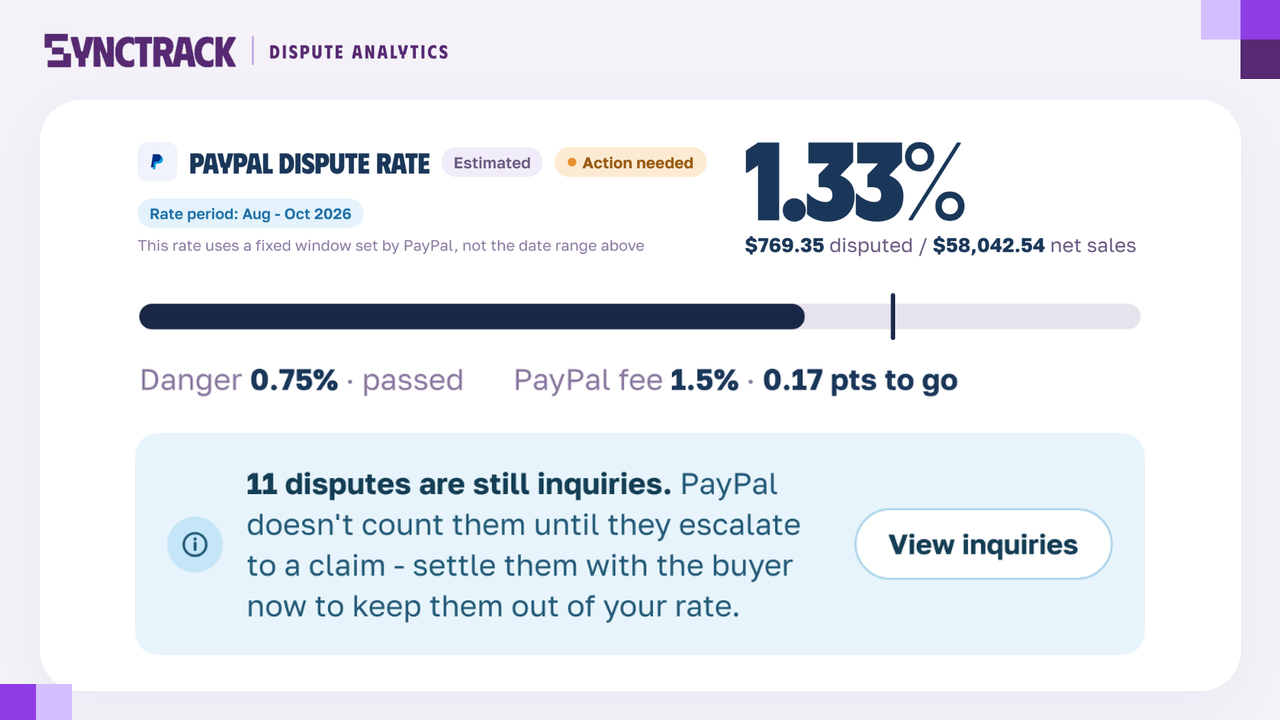
Shopify Dispute Analytics v2 Shows Each Gateway’s Rate Against Its Own Limit
Dispute Analytics v2 went live on November 10, 2026. It puts account health, open cases and period results on one page, so you can see which inquiries, requests and disputes need a response now.
- Account health by gateway: Each connected gateway shows its Chargeback rate or Dispute rate with a status: Healthy, Action needed or High risk. Rates are never added together.
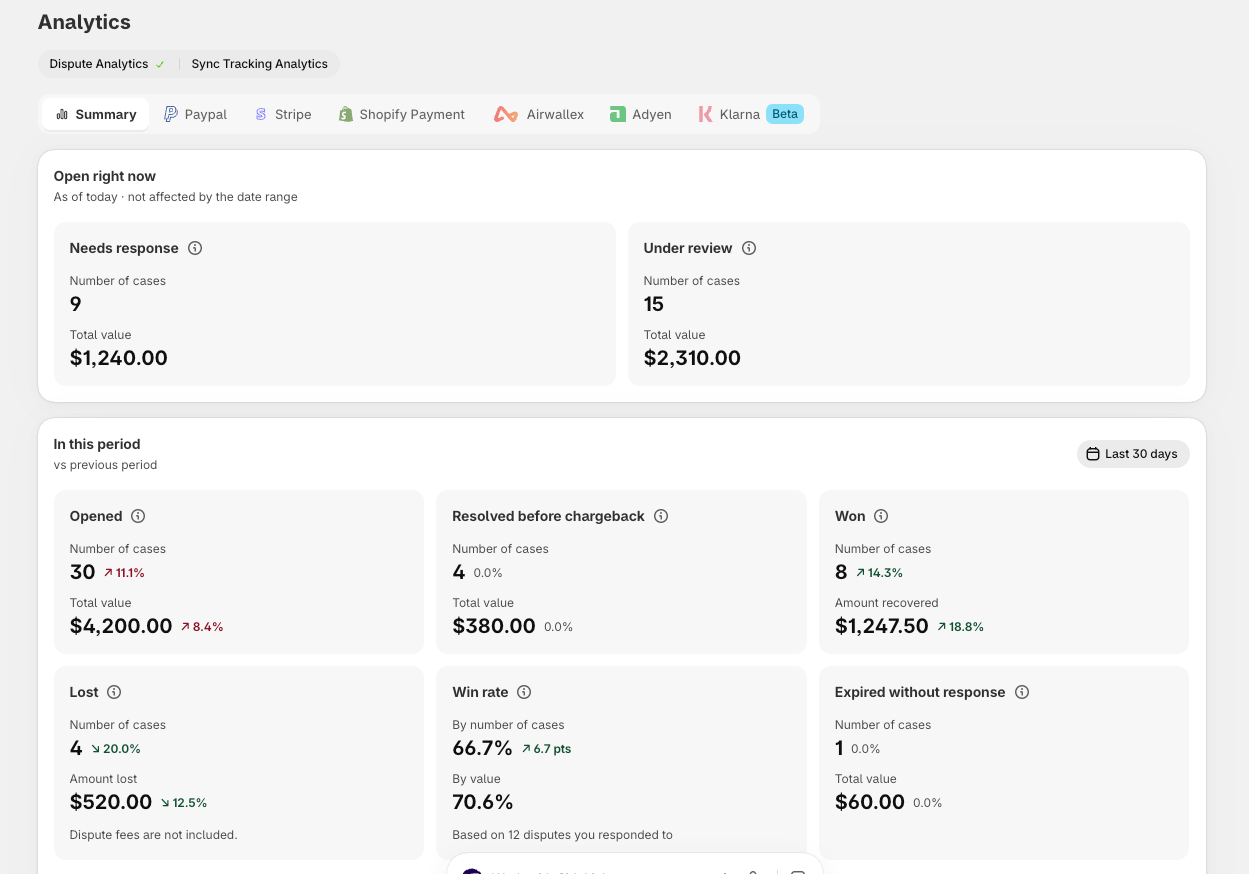
- Open right now: Needs response and Under review, counted as of today. Click a card to open those disputes.
- In this period: Opened, Resolved before chargeback, Won, Lost, Win rate and Expired without response, each with the number of cases, the value and the change versus the previous period.
- Repeat disputers: Buyers with 2 or more disputes, matched by order email across all time.
- Gateways covered: PayPal, Stripe, Shopify Payments, Airwallex, Klarna, Adyen and Afterpay.
It is available on all plans, including Free, for stores with Dispute management enabled and at least one connected dispute gateway.
Why Tracking Dispute Rate by Gateway Protects Your Payment Account
- See risk before a penalty: Each gateway tab shows its own limits, for example Danger 0.75% and Visa / Mastercard 1.5%, and how many points you have left before each one.
- Answer inquiries early: A reminder at the bottom of the rate card links to open inquiries and requests for information, so you can handle them before they turn into chargebacks.
- Read win rate honestly: Win rate counts only the disputes you responded to, so it answers how often you win when you fight.
- Spot repeat buyers: Review Repeat disputers before you ship their next order.
What You See in Each Gateway Tab of Dispute Analytics
- Rate card: The rate, that gateway’s own limits and the points left before each one.
- Rate period badge: Each gateway uses its own fixed window, not the date range on the page.
- Account selector: If a gateway has more than one account, choose it from Account: in the card.
- Action buttons: View inquiries, View requests, View early disputes or Respond now open the matching list. Needs response is sorted by the closest deadline.
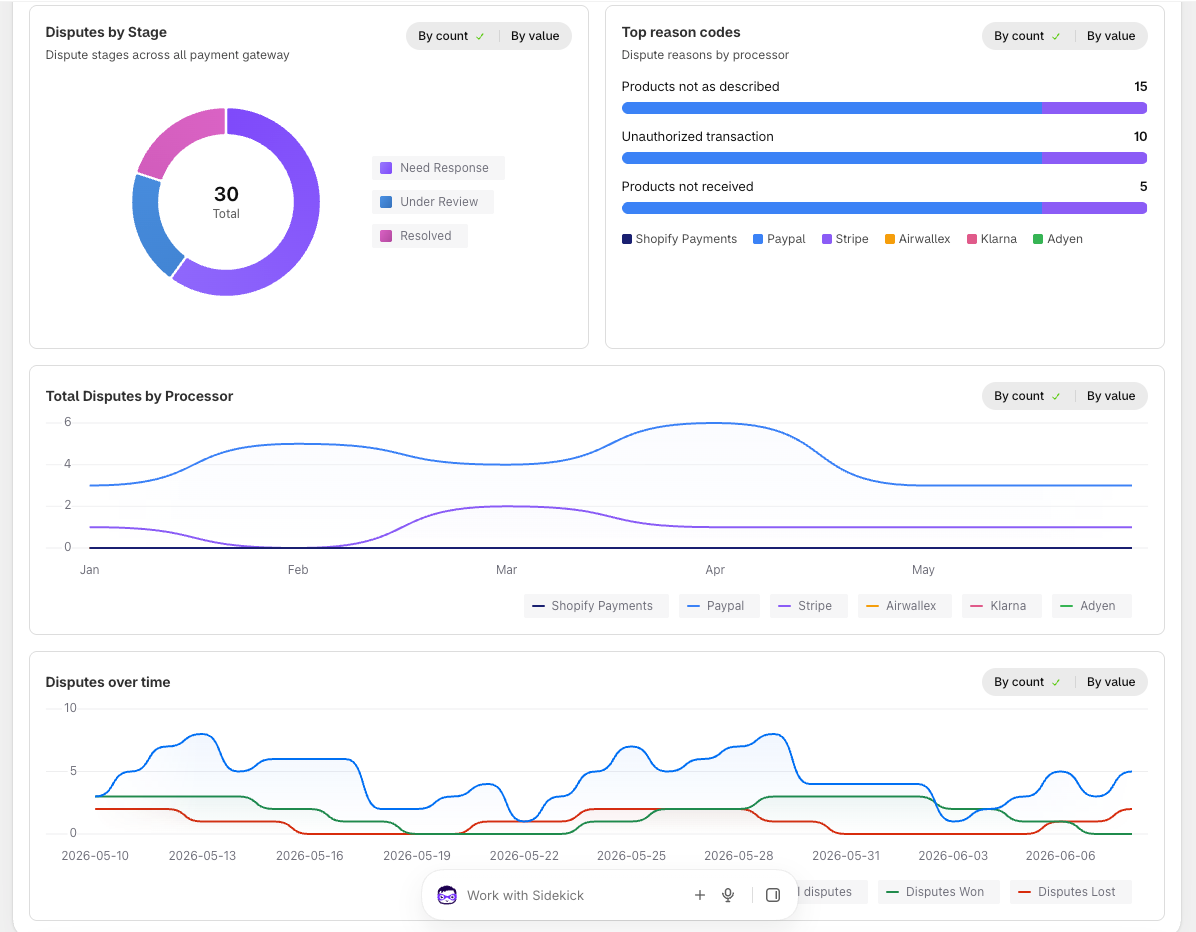
- Charts: Disputes by Stage, Top reason codes, Disputes over time and, on Summary, Total Disputes by Processor. Each chart has a By count / By value toggle.
How to Check Dispute Health in Shopify Dispute Analytics (Step by Step)
Quick setup: Dispute Analytics (4 steps)
- Go to Analytics -> Dispute Analytics. It is the first tab and opens by default. You can also click View Dispute Analytics from the Dispute tab.
- On Summary, find Account health by gateway and click a gateway to open its tab.
- Check the rate, the limits and the Rate period badge.
- If a reminder appears, click View inquiries (or View requests, View early disputes, Respond now) to handle those cases first.
Read the Dispute Analytics guide for more details.
Dispute Analytics Rules, Limits and What the Labels Mean
- From Shopify, Estimated, Approximate: From Shopify means the rate is read directly from Shopify. Estimated and Approximate rates are calculated by Synctrack and may differ slightly from the gateway’s own figure.
- Not enough data: The gateway had 100 transactions or fewer in its window, so no rate is shown.
- No published limit: Afterpay does not publish a limit.
- Not calculated on PayPal: Synctrack cannot read your PayPal sales. Click Connect via PayPal login to add the permission.
- Win rate and amounts: Accepted and expired disputes still count in Lost. Dispute fees are not included in any amount. Win rate may differ from the figure you saw before.
Start Using Shopify Dispute Analytics Today
Dispute Analytics v2 is live now. Open Analytics -> Dispute Analytics in Synctrack to review each gateway and see which cases need you first. Questions? Reach the Synctrack team through in-app live chat or email support.