Your return process shouldn’t feel like a “technical detour” for your customers. It should feel like a seamless, high-end extension of your brand—no matter where in the world your shoppers are located.
This week, we’ve rolled out two major updates to Synctrack Returns designed to help you go global while staying perfectly on-brand, all with significantly less manual work.
Stop sending “generic” emails that look like they came from a robot. You can now apply your unique brand identity across all return, exchange, and refund notifications in one single step.
Global Styling: Set your brand logo, background colors, and button colors once.
Instant Sync: These styles automatically ripple through every template in your library.
The Result: A professional, consistent customer touchpoint that builds trust instead of breaking it.
Pro Tip: Consistency is the “silent closer” in e-commerce. A branded return email can reduce customer anxiety and lower support tickets.
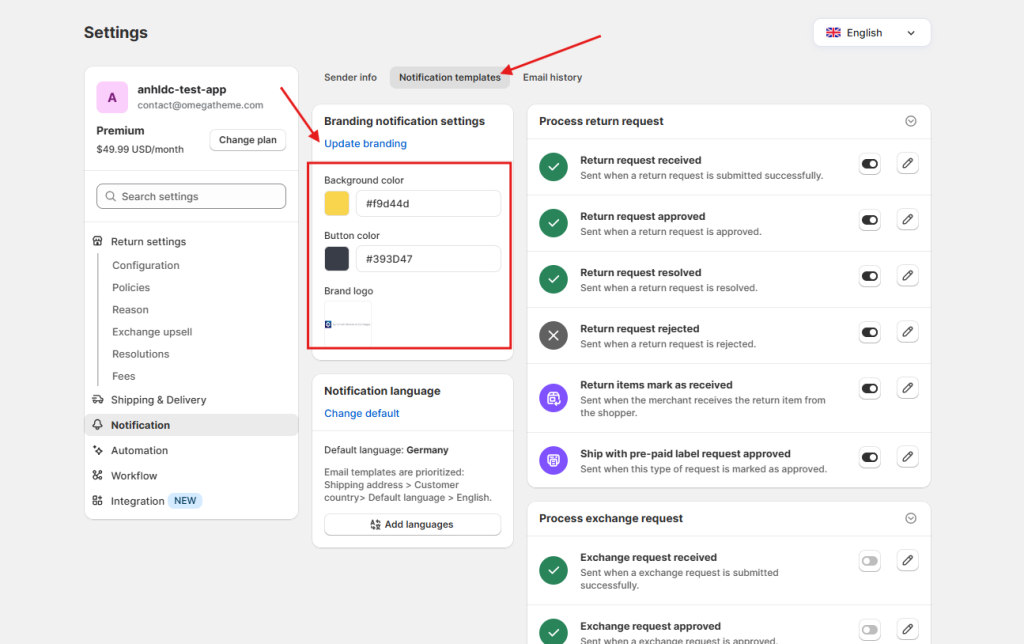
🔗 See how to set up branding for notifications
If you are selling internationally, your return portal and emails need to speak the local language. We’ve made it easier to serve your global audience by allowing your entire return ecosystem to adapt to the customer’s data.
Auto-Translation: Choose your default language and let Synctrack handle the heavy lifting. The system will auto-translate your templates and portal content instantly.
Tailored Voice: While our AI does the initial translation, you have full control to edit and tweak the wording to match your specific brand voice.
Global Reach: Automatically display the portal and send emails in the right language based on the customer’s location or order data.
How to Localize Your Experience
For Notifications: Go to the Language settings, click “Change Default,” select your target language, and choose the templates you want to translate. Click “Update & auto-translate” to finish.
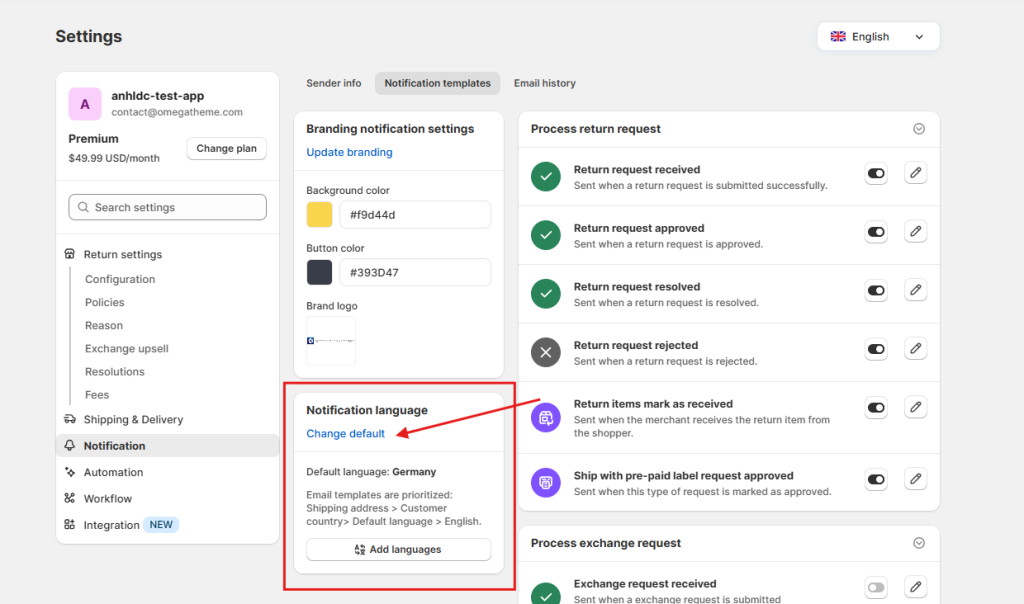
🔗 See how to set up language for Notification
For the Return Portal: Access Language settings, click “Change default,” and select your language. The portal content will update automatically.
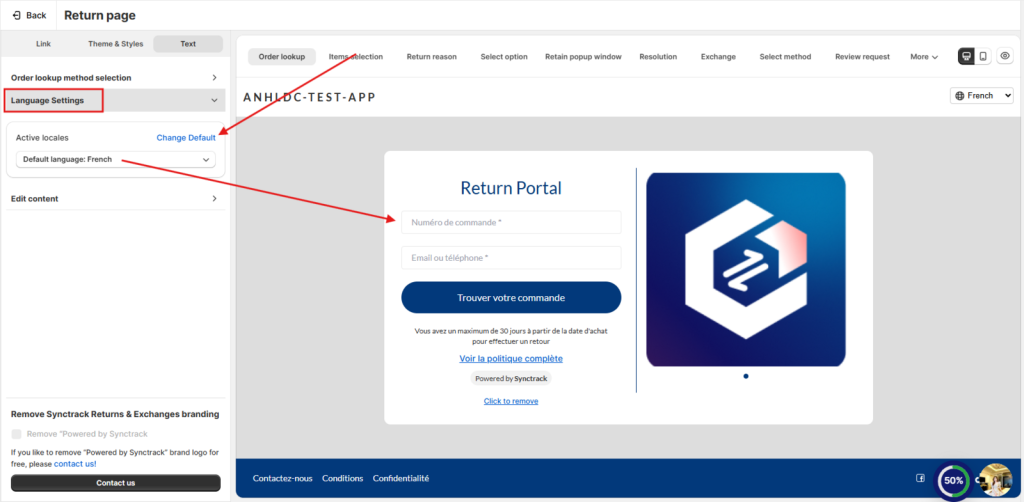
🔗 See how to set up language for Return Portal
We believe in accessible growth. Here is how these features scale with your plan:
Need a hand getting your translations just right? Our support team is standing by 24/7 in the live chat to help you fine-tune your global setup.