Have you ever had to create a return label manually because your automation rule chose a carrier service that was not your preferred option?
Whether you have negotiated custom shipping rates through specific carrier contracts or want to offer customers a more convenient local drop-off location, choosing the exact service tier shouldn’t add manual work to your operations.
We are excited to announce Specific Carrier Services in Automation rules for Synctrack Returns & Exchanges! Merchants can now specify and prioritize exact carrier services for prepaid return labels while maintaining 100% automated approvals.
Why Use Specific Carrier Services for Automated Return Labels?
Previously, Synctrack automation rules for prepaid return labels generated labels using either the Cheapest or Fastest rate available across connected logistics integrations.
With the new Specific services option, you get granular control over return logistics without sacrificing automation:
- Optimize Shipping Costs: Direct automated return labels to the exact carrier services where you have negotiated corporate discount rates.
- Improve Customer Experience: Provide shoppers with prepaid return labels for carriers with convenient drop-off locations near their address.
- Eliminate Manual Label Creation: Stop turning off automated labels to generate specific carrier labels by hand for special return cases.
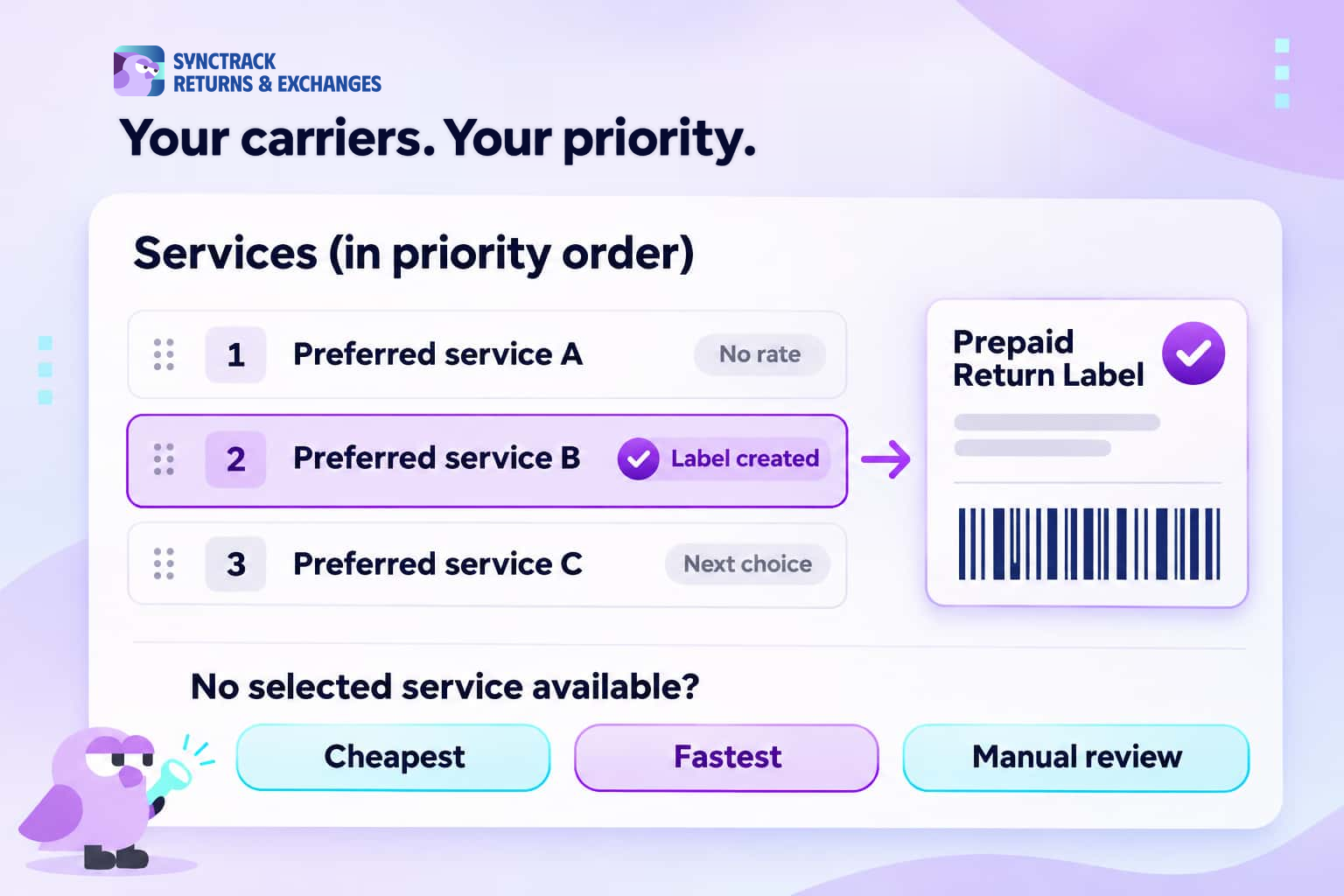
- Automated Fallbacks: Set fallback rules so that if your preferred services are unavailable, Synctrack automatically falls back to cheapest, fastest, or manual review modes.
How Specific Carrier Priority Order Works
When setting up your prepaid label automation rule, you can select up to 10 specific carrier services and arrange them in order of preference.
When an eligible return request is auto-approved:
- Synctrack queries your chosen services in your exact priority sequence.
- The app automatically generates the shipping label using the first service in your list that returns a valid rate for that specific shipment address and weight.
- If none of your preferred services return a rate, Synctrack triggers your configured fallback option.
Step-by-Step Setup Guide: Enable Specific Carrier Services in Synctrack
Configuring carrier priority in Synctrack Returns takes just a few steps:
Step 1: Open Your Automation Rule
- Navigate to Settings → Automation in your Synctrack admin.
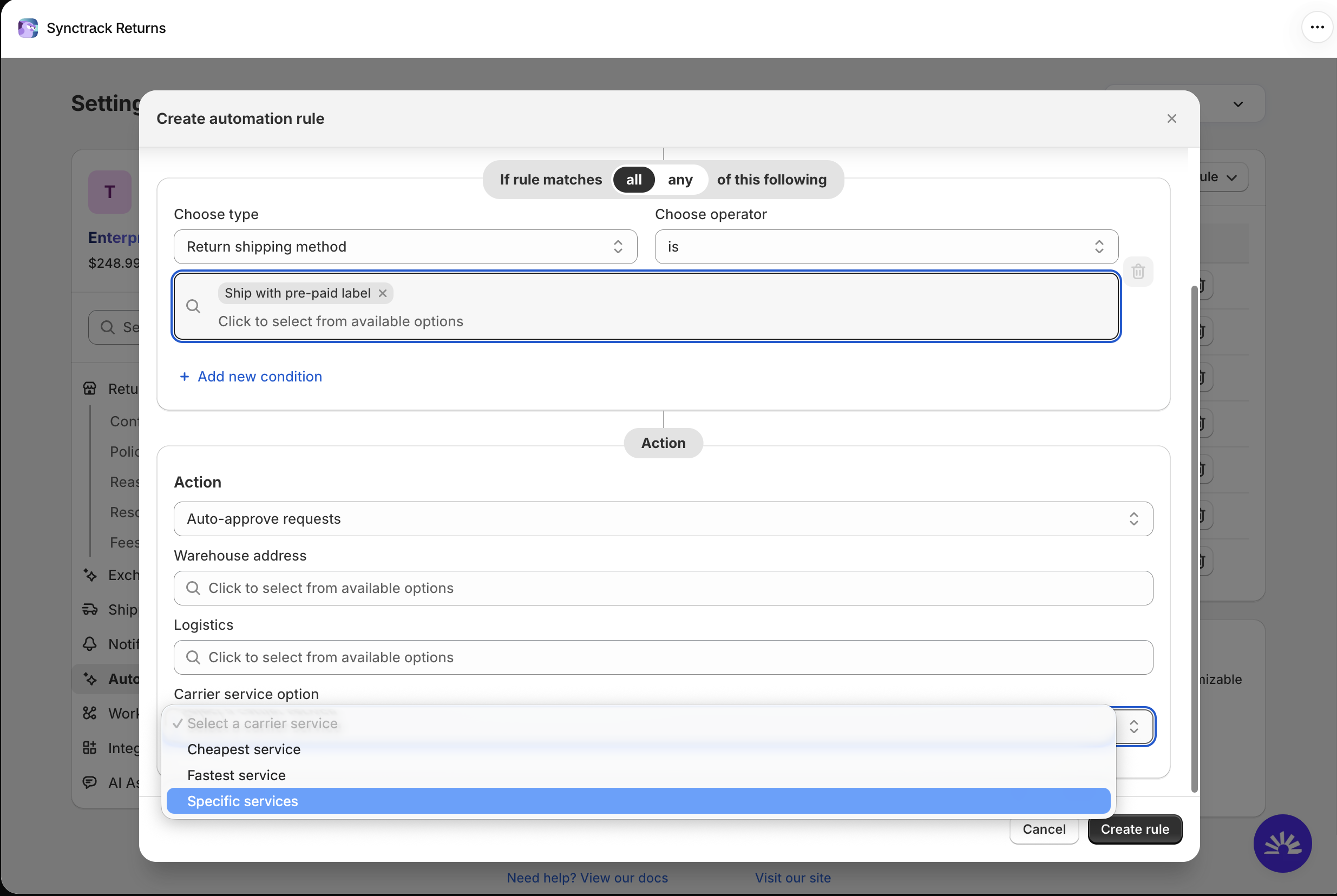
- Select an existing rule or create a new rule where the return method is set to Ship with prepaid label.
- Select your preferred Warehouse address and connected Logistics integrations.
- Under Carrier service option, select Specific services.
Step 2: Select Up to 10 Carrier Services
- Browse the list of services fetched from your connected logistics integrations. You can use the Search carrier or service bar to filter by carrier name.
- Check the box next to each service you wish to use (select up to 10 services total).
- If needed, click Refresh services to sync the latest rate cards from your carrier accounts.
Step 3: Set Priority via Drag-and-Drop
In the Services (in priority order) section, drag and drop the listed services to set your preferred priority order from top to bottom.
Step 4: Configure Fallback Behavior
Under If none of these services is available, select what Synctrack should do if no rates are returned for your selected services:
- Use cheapest available service (Default): Generates a label using the lowest rate available across any connected carrier.
- Use fastest available service: Generates a label using the fastest delivery option available.
- Don’t create label (manual review): Keeps the return request in Pending status with history logging “Auto-label skipped: none of the selected carrier services were available”, allowing your staff to manually review and issue the label.
Click Save to activate your rule.
Check the full guideline here!
Important Notes & Compatibility
- Supported Integrations: Specific service selection is currently available for ShipStation, EasyPost, Shippo, and Sendcloud. Other integrations (such as Shiprocket, Shipway, Starshipit, Velocity, and iThink Logistics) continue to work seamlessly via fallback modes.
- Unavailable Service Alerts: If a saved service becomes unavailable from your carrier account, Synctrack tags it with an Unavailable badge so you can easily replace it.
- Existing Rules: All existing automation rules utilizing Cheapest or Fastest settings will continue running without interruption.
Take Full Control of Your Return Logistics Today
Automating return management should never mean sacrificing control over shipping expenses or carrier choices. By introducing Specific Carrier Services, Synctrack Returns & Exchanges helps you leverage your custom carrier contracts, maintain predictable logistics costs, and deliver seamless return experiences to your customers without manual intervention.
If you need assistance configuring carrier priority rules or finding the optimal setup for your warehouse destinations, reach out to our team anytime via live chat or reply directly to our updates.
Set up specific carrier service rules in Synctrack Returns
Automate return shipping labels using your preferred carrier accounts and negotiated rates. Available on the Premium plan and above.
Install Synctrack Returns