Many PayPal disputes start with a buyer who just wants an answer: where is my order, or what is this charge? PayPal does not always let you message that buyer, and writing a careful reply from scratch for every case eats time you would rather spend on evidence.
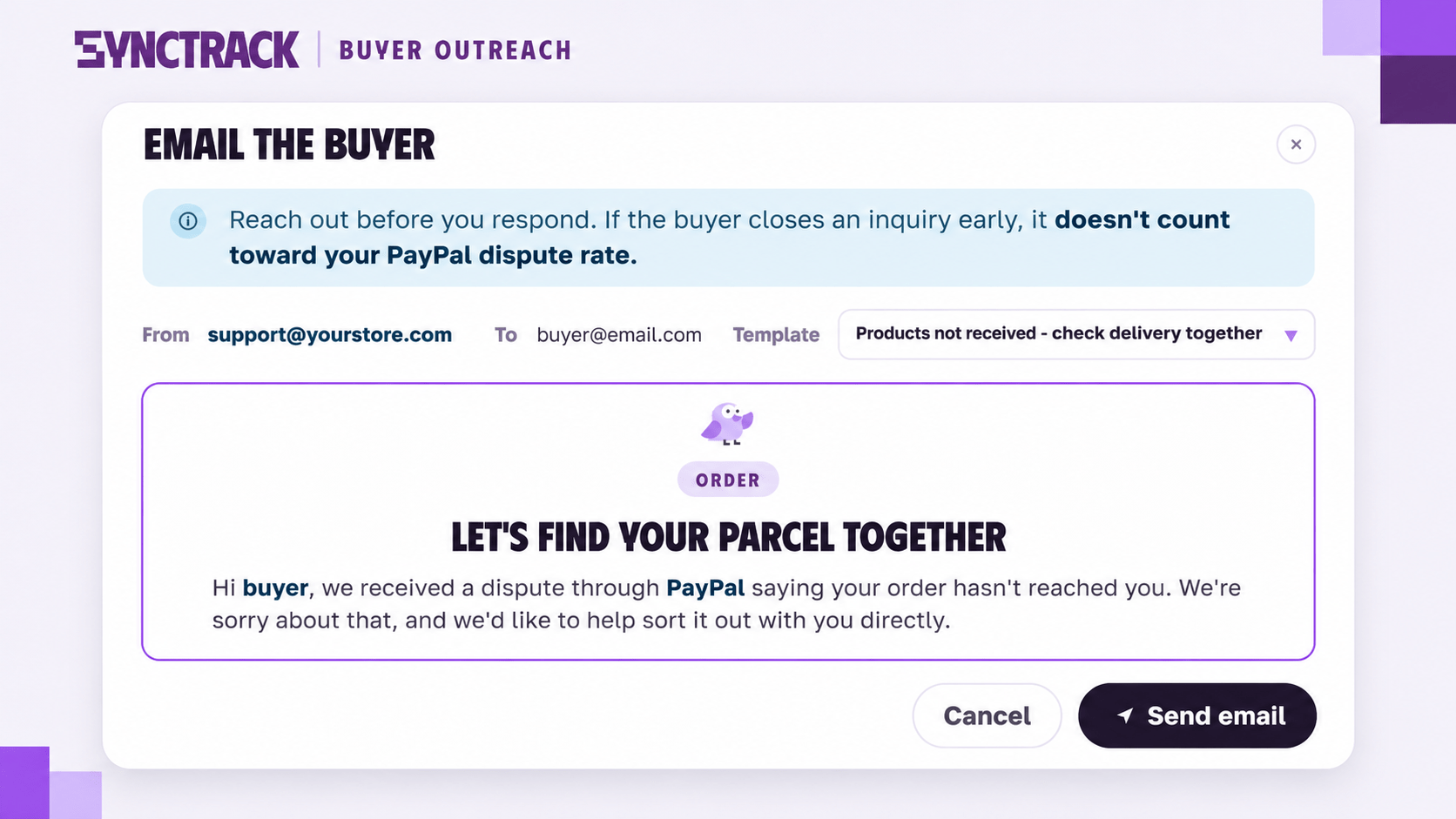
Synctrack PayPal Chargebacks now includes buyer outreach for PayPal disputes. From a supported dispute, you pick a response template, preview the message and send it from your own email address. Replies land in your inbox, so you can keep useful conversations on hand when you prepare your case.
Buyer Outreach for PayPal Disputes Now Lives Inside Every Dispute
Open the detail screen of a PayPal, Stripe or Shopify Payments dispute and you will see a new Email buyer button. It works like this:
- One click to start: choose a template, review the preview and send. No new tab, no copy and paste.
- Pre-filled details: the preview already includes the order, tracking and delivery information for that dispute.
- Your address, your inbox: the email goes from your shop’s sender address, and the buyer replies straight to your mailbox.
- Works when PayPal does not: you can reach the buyer even when PayPal does not allow you to message them.
What you get in Settings -> Buyer outreach
- Response templates: 8 default templates matched to dispute reasons. Edit them, add your own, and use Variables so order details fill in automatically.
- Email setup: connect your sender email through Amazon SES or SMTP.
- Email history: a log of every email you sent, with a Sent or Not sent status, a preview and the reason for any failure.
Why Emailing the Buyer First Helps Reduce PayPal Disputes
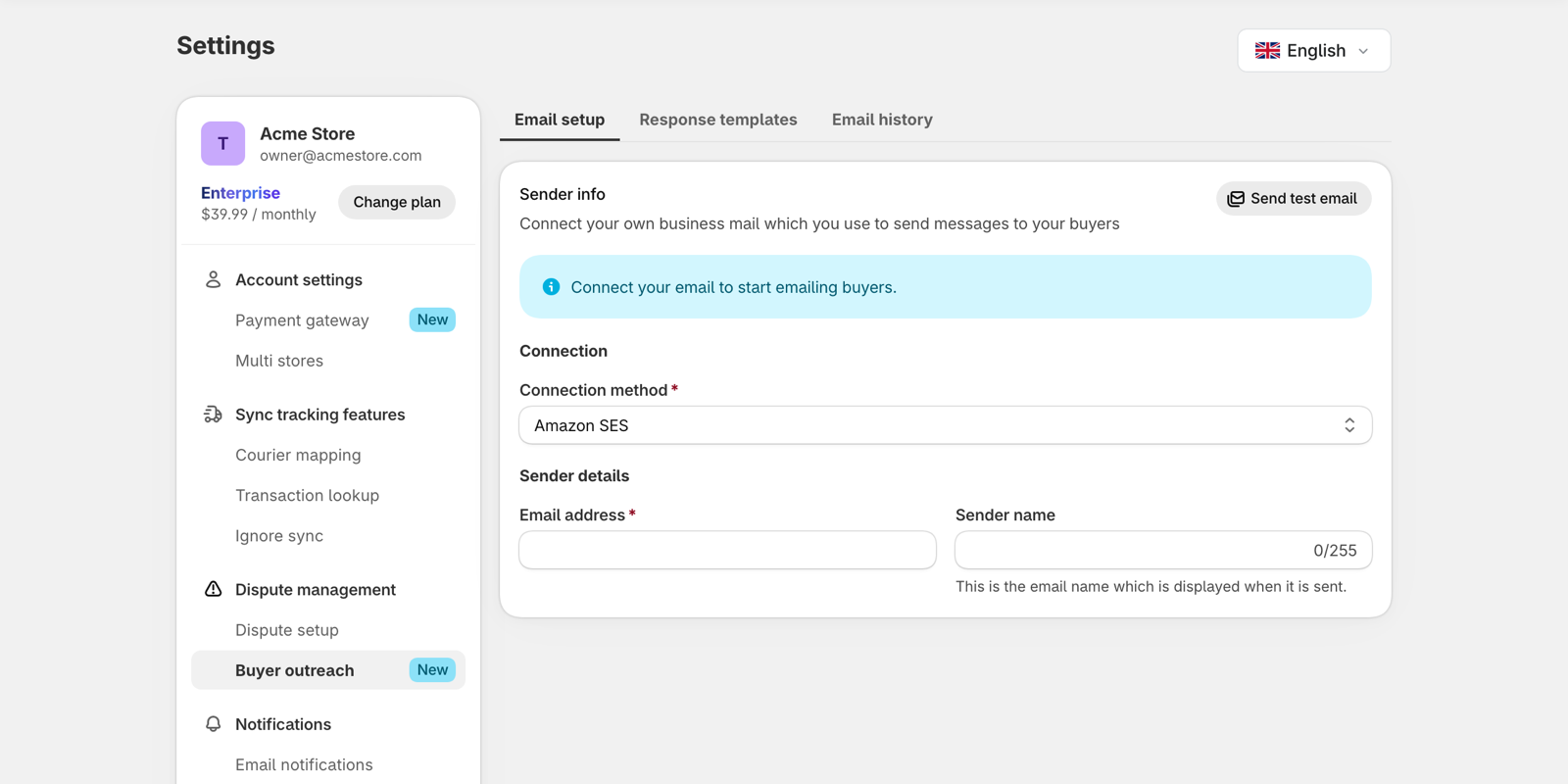
The best dispute is the one that never becomes a formal case. Contacting the buyer early gives you a chance to settle it at the source.
- Close the case before it escalates: with PayPal, a case the buyer closes while it is still an inquiry does not count toward your dispute rate.
- Skip the blank page: templates are organized by dispute reason, so you start from a message that fits the situation.
- Get more replies: buyers see an email from an address they recognize as your shop, which makes them more likely to respond.
- Keep evidence-ready replies: a buyer’s reply can be strong material when you need to submit evidence.
How to Email a Buyer From a Dispute
Open any supported dispute and select Email buyer. Synctrack shows the template that matches the dispute reason first. Check the preview, edit anything that needs a personal touch, then click Send email.
Each send is recorded in two places. The dispute timeline shows an “Emailed via Synctrack” entry, and the Email history tab lists the message with its status. If an email did not go out, the tab shows why.
Find the disputes that need a message
Use Analytics -> Dispute Analytics to decide where to start outreach:
- Review account health by gateway: check rates and thresholds for each connected gateway.
- Focus on open work: open filtered lists of inquiries, requests and cases that still need a response.
Step-by-Step: Set Up Buyer Outreach for PayPal Disputes
Synctrack does not send from a default address, so you connect your own sender email first. Setup takes a few minutes.
Quick setup (5 steps)
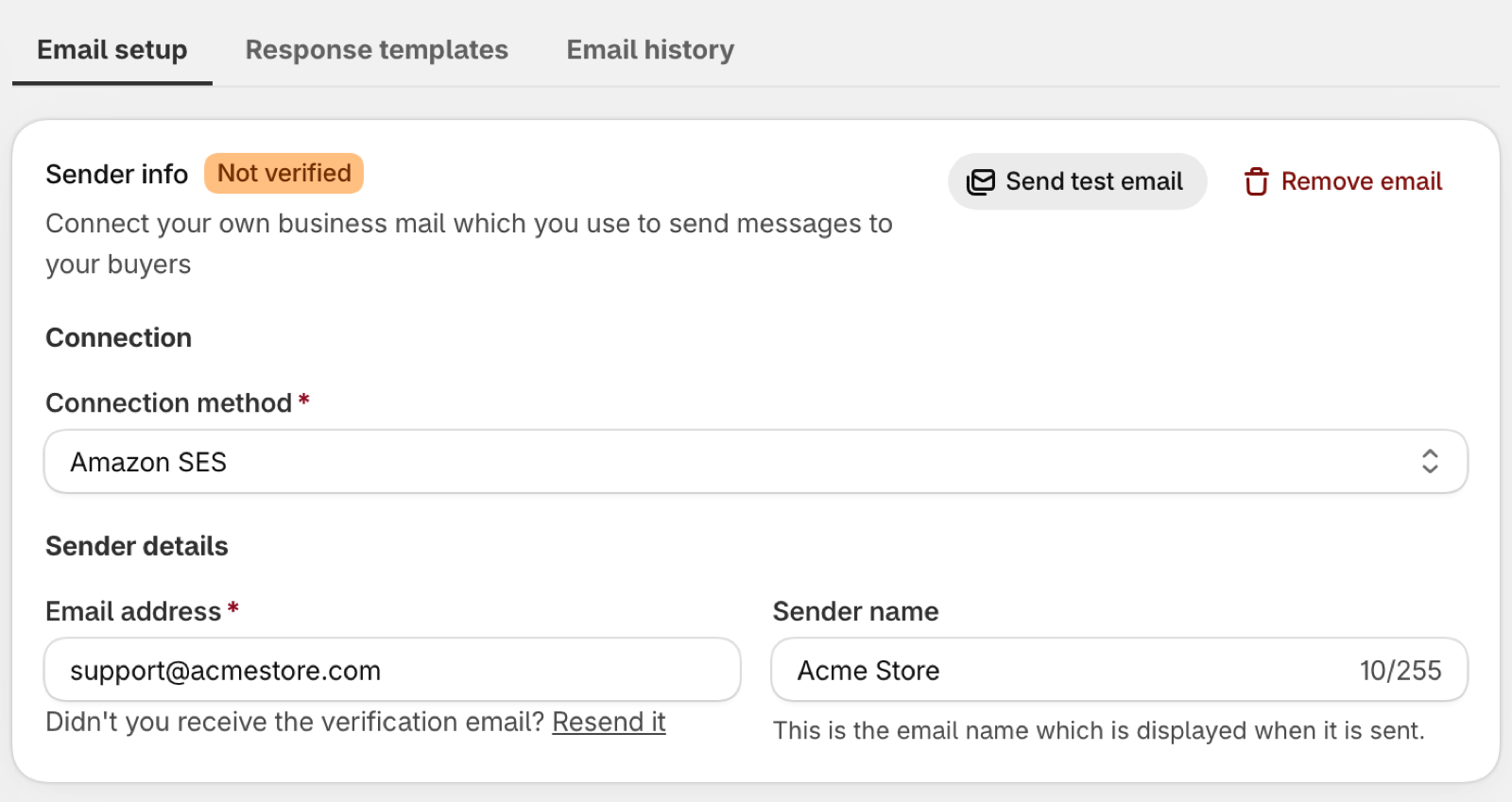
- Go to Settings -> Buyer outreach -> Email setup and choose a Connection method. Pick Amazon SES to verify any address you can receive mail at, or SMTP for Gmail, Google Workspace, Zoho, Outlook or your own mail server.
- For Amazon SES, enter your Email address and an optional Sender name, click Save, then open the verification email and click its link. The badge changes to Verified. For SMTP, enter the host, a port (465 or 587) and an app password, then click Save. The badge shows Active right away.
- Click Send test email to confirm the connection works.
- Open the Response templates tab and adjust the 8 defaults so they sound like your shop.
- Open a dispute, click Email buyer, choose a template, check the preview and click Send email.
Connecting Gmail or another SMTP provider
Gmail uses smtp.gmail.com with port 465 or 587. Turn on 2-Step Verification, create an app password, and paste it into Application password. Use the same Gmail address in Email address and leave SMTP Username blank. Zoho and Outlook follow the same pattern with their own hosts. The full walkthrough is in the sender email setup guide.
If a test email fails, the two usual causes are a wrong app password (or a regular password used by mistake) and a wrong host or port. Try switching between 465 and 587. Never share your password with anyone, including support.
Rules, Eligibility and Limits for Buyer Outreach
- Your own sender is required: there is no default Synctrack address and no Sign in with Google yet. Gmail connects through SMTP with an app password.
- No Synctrack inbox: buyers reply to your email, so save helpful replies you may want to submit as evidence.
- When Email buyer is locked: the button is unavailable if the dispute has no buyer email, if evidence has already been submitted, or if the gateway is not supported (Airwallex, Klarna, Adyen and Afterpay).
- Sending limits: up to 200 buyer emails per day. Test emails are limited to 3 per minute and 30 per 24 hours.
- Do not refund an open case: ask the buyer to close the case first.
- Send message via PayPal is unchanged: that flow works the way it did before.
Start Using Buyer Outreach for PayPal Disputes Today
Buyer outreach is live in Synctrack PayPal Chargebacks for merchants using Dispute Management with PayPal, Stripe or Shopify Payments. Go to Settings -> Buyer outreach, connect your sender email, then open a supported dispute and select Email buyer.
Stuck on setup? Contact support from the in-app chat and include your connection method and the exact message you see.
Buyer outreach
Reach buyers before a dispute becomes a case
Connect your sender email and send your first buyer email straight from a dispute.
Try Synctrack on Shopify