Handling chargebacks and payment disputes is one of the most tedious operational bottlenecks for Shopify merchants. When an Airwallex dispute arises, resolving it typically requires toggling between your Airwallex portal, Shopify order admin, shipping carrier portals, and scattered evidence files – all while racing against a strict submission deadline.
With our latest update, Synctrack PayPal Tracking Sync brings Airwallex Dispute Management directly into your Synctrack workspace (currently in Beta). You can now monitor dispute timelines, pull fulfillment tracking data automatically, and submit compelling evidence to Airwallex without leaving your dashboard.
Contents
Managing payment challenges directly from your fulfillment tracking hub removes redundant manual data entry and minimizes the risk of missed deadlines. Once your account is connected, Synctrack provides an end-to-end operational workspace for your Airwallex disputes.
Every hour spent hunting down tracking links and formatting PDF receipts is time taken away from scaling your business. Fragmented dispute processes often lead to missed deadlines and lost revenue.
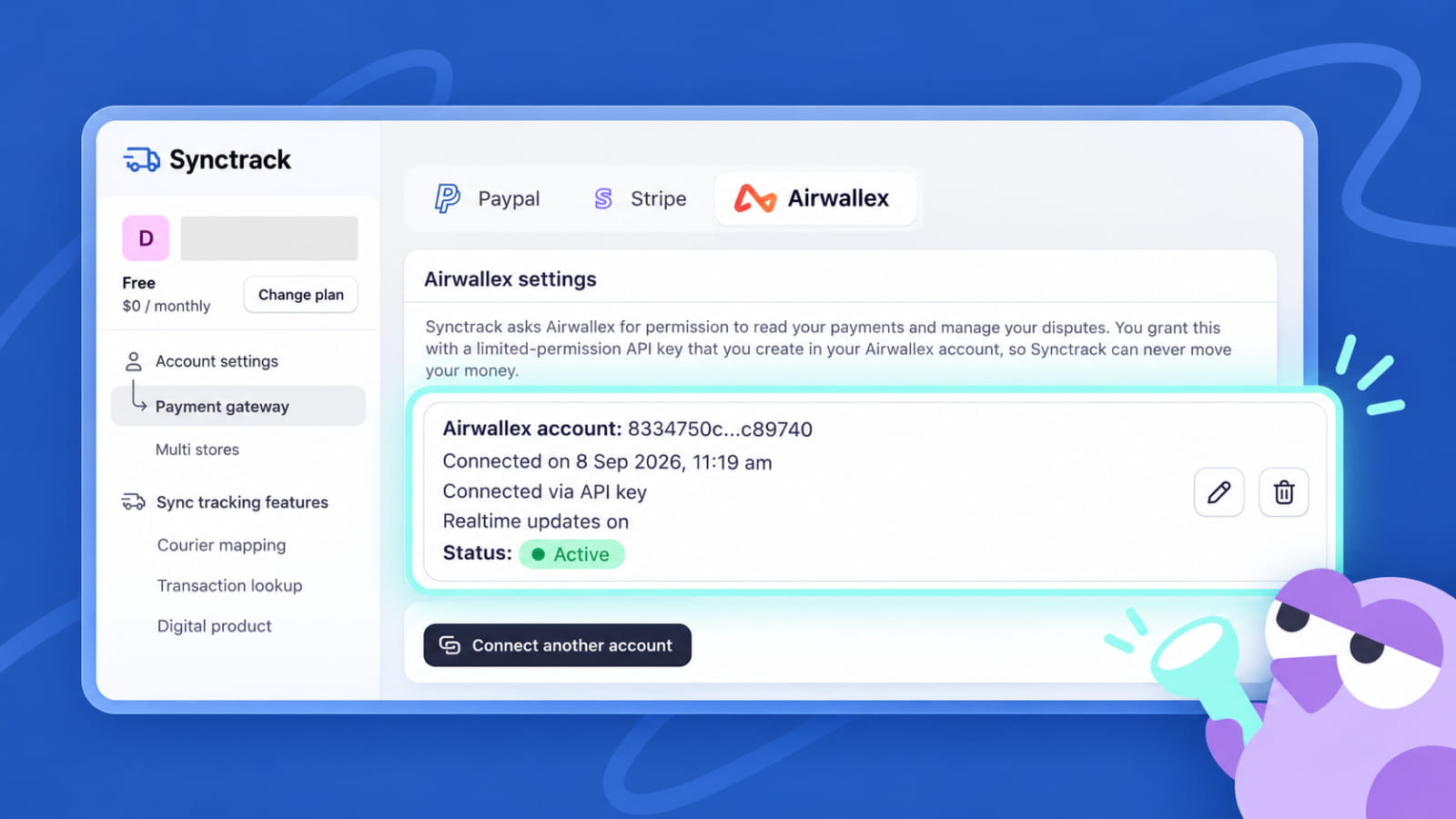
Connecting Airwallex is available on all Synctrack plans, including the Free plan (responding to imported disputes requires a Basic plan or higher). Follow the steps below to configure your scoped API key and optional real-time webhook.
In your Airwallex account, go to Developer → API keys, select the Scoped keys tab, and click New scoped key.
Enter a descriptive name (e.g., Synctrack) and select your target account under Account permissions → Accounts (required).
Leave all Global permissions (Accounting, Billing, Spend, Webhooks) switched off.
Under Account permissions, configure the following:
Payment Acceptance → select Read
Payment Disputes → select Read and Write
Supporting Services → expand Upload Files and select Write
Click Next, then Create (you can safely skip the IP whitelist screen).
Copy both the Client ID and API key immediately. Airwallex displays the API key only once.
In Synctrack, navigate to Settings → Account settings → Payment gateway → Airwallex.
Click Connect Airwallex account.
Paste the Client ID and API key from Step 1, then click Save.
Once verified, the dashboard displays your connection date and status as Connected via API key. If any permission was missed, Synctrack highlights the specific rows to adjust.
By default, Synctrack polls Airwallex for updates every 10 minutes. Adding a webhook enables near-instant synchronization as soon as a dispute status changes.
In Airwallex, navigate to Developer → Webhooks and click New webhook.
Set the name to Synctrack and set the Notification URL to:
[https://apps.synctrack.io/apis/dispute/airwallex-webhook](https://apps.synctrack.io/apis/dispute/airwallex-webhook)
Under Events, select all Account events and click Save.
Copy the webhook signing secret (prefixed with whsec_).
In Synctrack, open your Airwallex connection, paste the value into Webhook secret (optional), and save. The status will update to Realtime updates on.
Keep these operational guidelines in mind when managing your connected Airwallex accounts:
Key rotation: To update an API key, use Enter a new API key. Ensure the replacement key belongs to the same Airwallex account so it updates the existing connection rather than adding a separate account.
Multi-account support: You can connect multiple Airwallex accounts to a single Synctrack store by clicking Connect another account.
Access revocation: If an API key is revoked in Airwallex, the dashboard marks the connection as Reconnect needed. Previously synced disputes and orders remain preserved.
Disconnection behavior: Disconnecting stops tracking number syncs and halts new incoming disputes for that account. Synced historical records remain untouched. Disconnecting clears the webhook secret in Synctrack, but does not delete the webhook entry inside Airwallex.
Read the full guideline here.
Airwallex Dispute Management is live in Beta across all Synctrack plans. Connect your Airwallex account today to eliminate tab-switching, streamline evidence submission, and protect your hard-earned revenue.
Ready to get started? Open Synctrack PayPal Tracking Sync in your Shopify admin, head to Settings → Account settings → Payment gateway → Airwallex, and connect your account in minutes. If you have questions or need setup assistance, contact our team via in-app live chat or email support.