The Shopify order status page is the page customers use after checkout to review an order, follow shipping progress, and access relevant post-purchase actions. It can reduce “Where is my order?” messages, but only when tracking details are complete and the page is easy to understand.
This guide explains what the page shows, how customers reach it, what each Shopify status means, and how to set it up and customize it. It also clears up a common source of confusion: Shopify has separate order, payment, fulfillment, delivery, and return statuses. They describe different parts of the same order.
The Shopify order status page is the final page in the checkout journey. A customer first sees it after completing an order and can return later to check for updates. Shopify describes it as the main place where customers track shipments once a merchant adds tracking information.
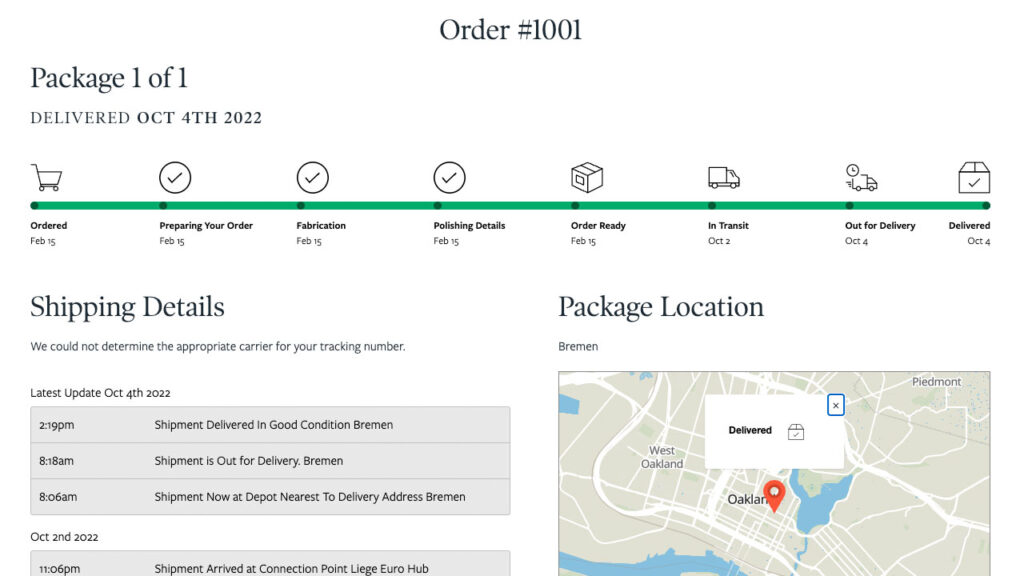
Depending on the order and store setup, the page can show:
The page is not the same as the order confirmation email. The email is a message sent at a point in time. The status page is a page customers can revisit, so its information can change as the merchant fulfills the order and the carrier moves the package.
It is also different from the Orders page in Shopify admin. Customers see the order status page; merchants and staff use the admin to process payments, fulfill items, add tracking, handle returns, and manage the order.
The time between checkout and delivery contains a lot of uncertainty. The customer has paid, but the product has not arrived. If the store does not provide a reliable place to check progress, the customer will often contact support.
A useful status page gives the customer one clear source of information. It can answer simple questions before they become tickets: Was the order confirmed? Has it shipped? Which carrier has it? Is it out for delivery? Were all items sent together?
The page also helps merchants maintain a consistent post-purchase experience. Customers do not have to move between a branded store, a generic carrier page, and a long email thread just to understand what happened. A clear page can build confidence, especially when the order has several items or shipments.
However, the page is only as useful as the data behind it. If staff mark an order fulfilled without adding a tracking number, Shopify cannot show normal carrier updates. If the carrier is unsupported, the customer may need to follow a link to the carrier’s own site. Good operational data comes before good page design.
When people search for a Shopify order status list, they often want the shipping labels visible to customers. For shipments using a supported carrier, Shopify can update the order status page as carrier events arrive.
| Customer-facing status | What it means |
| Confirmed | The customer created the order, but the merchant has not shipped or fulfilled it yet. |
| On its way | The merchant marked the order fulfilled or partially fulfilled, and the shipment is moving through delivery. |
| Out for delivery | The package has reached the customer’s local area and is expected to be delivered soon. |
| Delivered | The carrier reports that the customer received the shipment. |
| Attempted delivery | The carrier tried to deliver the package but could not complete the delivery. |
These simple customer labels should not be confused with all the status badges shown in Shopify admin. A merchant might see “Paid,” “Fulfilled,” and “In transit” on the same order because each badge answers a different question.
There is another practical detail. If a merchant fulfills an order without a tracking number, Shopify says the customer-facing status can remain “On its way” until the merchant manually marks the order as delivered. That is one reason to add complete tracking data whenever it is available.
For unsupported carriers, the page can still display a tracking number linked to the carrier’s website. Shopify may not show the normal real-time status or update a map pin for that shipment.
There is no single status that explains everything about an order. Shopify separates status into categories so staff can tell what has happened and what work remains. The most useful way to read an order is to check the categories together.
General order status describes whether the order is active in the merchant’s workflow.
| Status | Meaning |
| Open | The order was placed or created, and some work may remain, such as payment, fulfillment, or a return. |
| Archived | The order was manually or automatically archived. |
| Canceled | The order was canceled. Work may still remain if it was not fully refunded. |
“Open” does not mean unpaid or unshipped. It only means the order may still need attention. An open order can already be paid, for example, while staff prepare its items.
Payment status tells the merchant what has happened to the money. It does not tell the customer where the package is.
| Status | Meaning |
| Pending | Payment processing has started but is not complete, or payment is expected later or through a manual method. Payment is not guaranteed. |
| Authorized | The provider approved the payment details, but the merchant still needs to capture the payment. |
| Due | Payment was not captured by the due date set in the payment terms. |
| Expired | An authorized payment was not captured before the provider’s deadline, or the provider could not process it. |
| Paid | The full payment was captured or the order was marked as paid. |
| Partially paid | The merchant captured less than the full order value. |
| Refunded | The full amount paid was returned to the customer. |
| Partially refunded | Only part of the amount paid was returned. |
| Voided | A payment authorization was canceled before capture, releasing the hold on the payment method. |
| Unpaid | A grouped status that includes authorized, pending, expired, and partially paid orders. |
Shopify may also display an “Expiring” badge shortly before the capture deadline for an authorized payment. Shopify notes that this is a warning badge, not a separate payment status.
Fulfillment status describes the merchant’s progress in preparing and sending the items.
| Status | Meaning |
| Unfulfilled | The order was placed, but its items have not been fulfilled. |
| In progress | Staff are preparing the order, such as picking and packing its items. |
| On hold | The merchant or an app paused fulfillment. The hold must be released before the items can be fulfilled. |
| Scheduled | A prepaid subscription order is waiting for its scheduled fulfillment date. |
| Partially fulfilled | Some, but not all, items have been fulfilled. |
| Fulfilled | All items requiring fulfillment have been fulfilled. |
| Fulfillment not required | No items remain to fulfill, such as after certain cancellations, full refunds before fulfillment, or edits that remove the remaining items. |
Fulfilled does not always mean delivered. In a normal shipping workflow, fulfillment means the merchant has sent the items or completed the fulfillment step. Delivery status then describes what happens while the carrier transports the package.
Delivery status shows progress. Shopify’s order filters and fulfillment display statuses include:
Labels vary by carrier data and where they appear. A fulfilled package may show No status without usable tracking data.
Return status shows the most important return task remaining for an order. Orders without a return do not have a return status.
| Status | Meaning |
| Return requested | A customer requested a return, and the merchant can approve or decline it. |
| Return in progress | The request was approved or the return was created in Shopify, and work remains. |
| Inspection complete | The returned items were inspected, and the merchant can review the result before issuing a refund. |
| Returned | The return is complete and no return work remains. |
The exact labels available in a view can vary with the feature or filter being used. For daily work, focus on the action each status requires instead of trying to compress every category into one order stage.
Customers can reach the page in several ways:
Shopify’s default notification templates already include the relevant order status links. If a merchant has customized those templates, the links should be checked to make sure they were not removed or broken.
Access is protected because the page can contain personal and payment-related details. Shopify may let a customer open a notification link without signing in for a limited period. After that, the customer may need to sign in or verify their identity. If they do not authenticate, Shopify can show a redacted view that hides details such as the customer’s name, addresses, payment method, shipping method, and tracking number.
This protection should not be treated as an obstacle to remove. It helps keep order information private when a link is old, forwarded, or opened on another device.
There are two ways to set up order status updates on Shopify: use Shopify’s built-in order status page for basic tracking, or use an order tracking app like Synctrack when you need more detailed delivery updates and control over the post-purchase experience.
Shopify already provides an order status page where customers can follow their orders after checkout. For stores using Shopify’s default notification templates, the link to this page is automatically included in order and shipping emails.
The basic setup is simple:
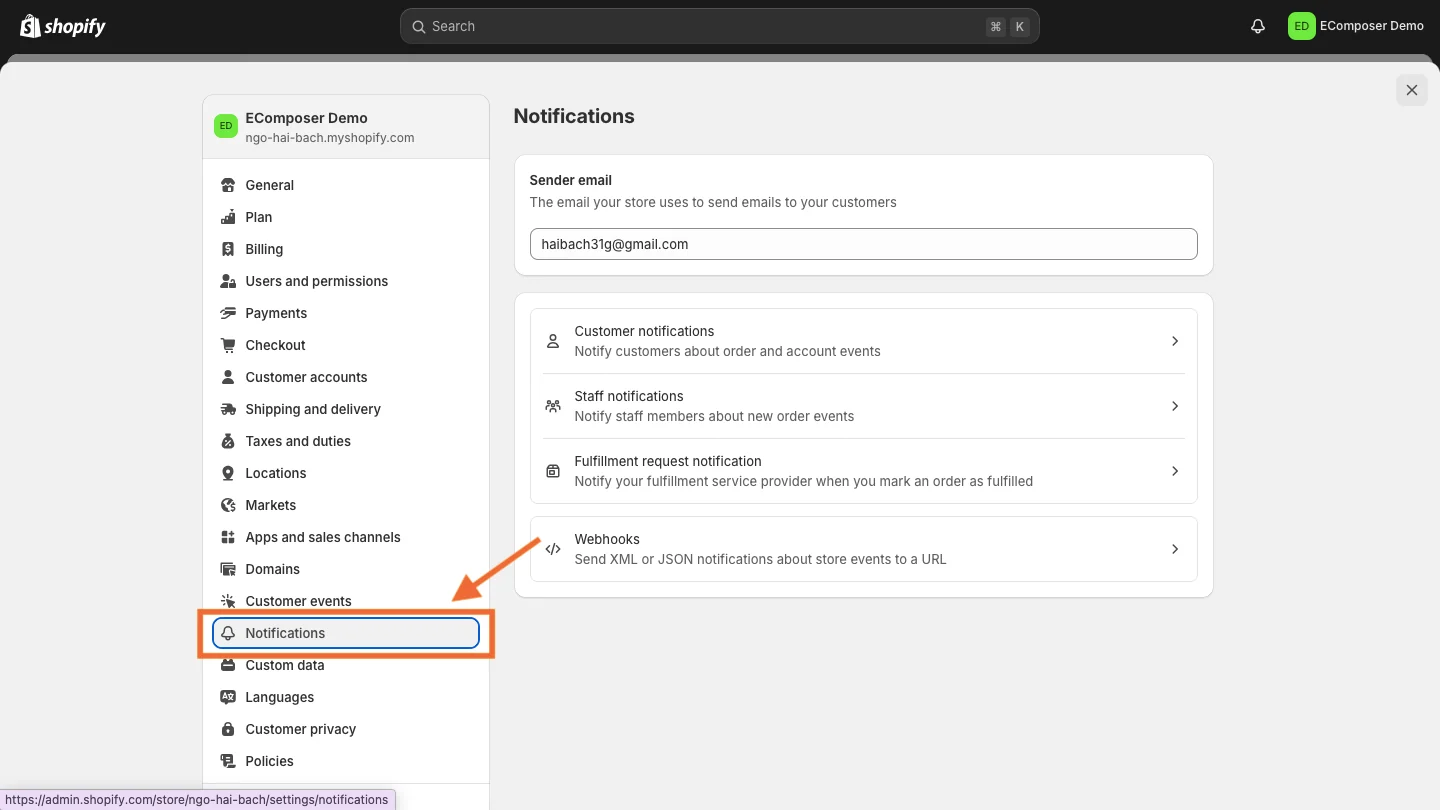
You can also use Shopify’s checkout and accounts editor to adjust the branding and appearance of the Order Status page.
For stores that only need basic shipment tracking, this setup may be enough. However, the experience is largely tied to the tracking information and statuses Shopify supports.
For more control, Synctrack Order Tracking can extend the basic Shopify setup by continuously tracking carrier events and automatically syncing delivery status back to the Shopify Order page.
To enable delivery status sync:
From then on, future shipping events tracked by Synctrack are automatically pushed to the relevant Shopify order. Carrier events are mapped into Shopify-supported delivery statuses such as In transit, Out for delivery, and Delivered, so the order timeline stays updated without merchants manually changing it.
This is especially useful when Shopify is also connected to other tools. Because the updated delivery status is pushed back into Shopify, apps such as Klaviyo or Gorgias can use that order information for their own workflows.
Synctrack also gives merchants a separate branded tracking page rather than relying only on Shopify’s default presentation.
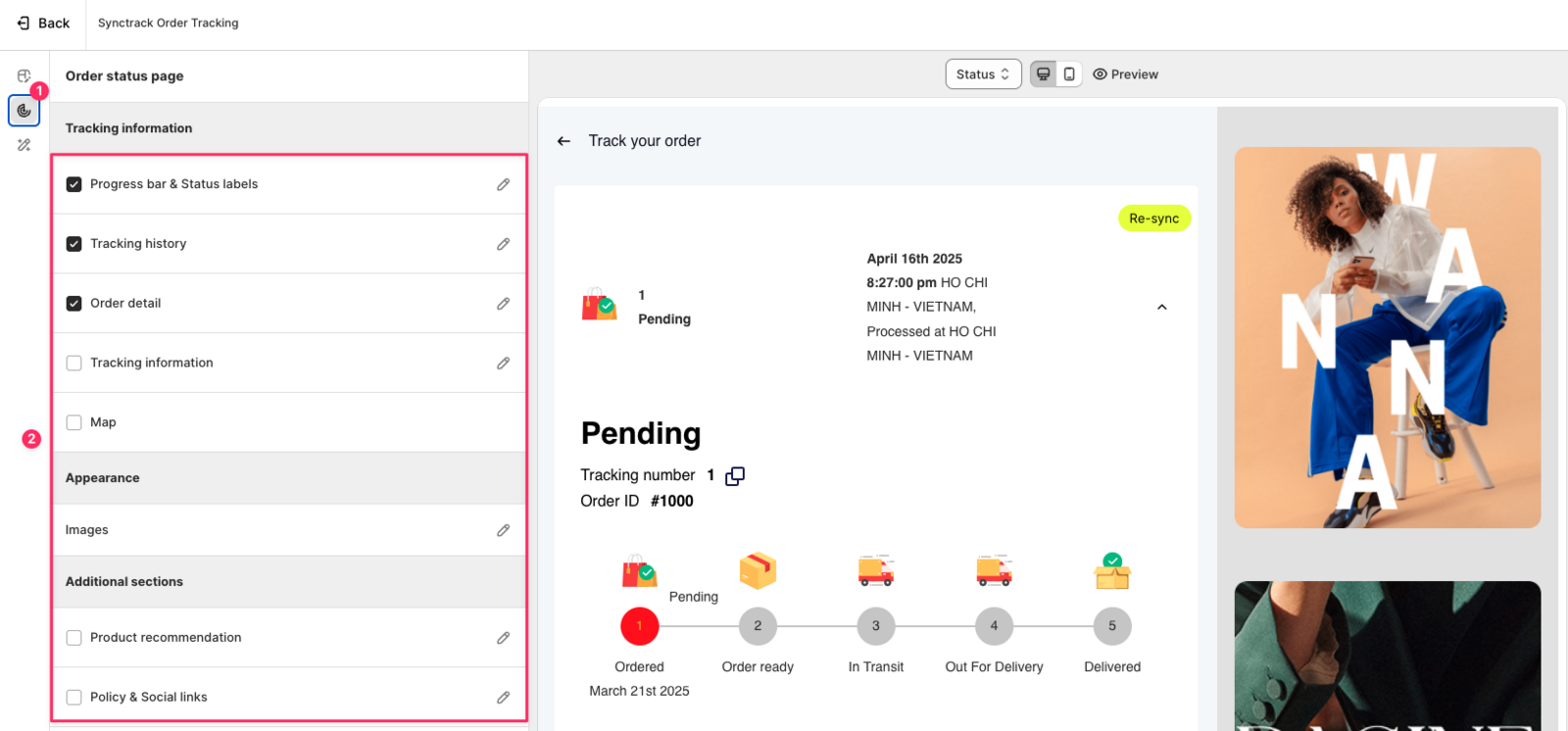
Go to Tracking Page > Tracking page editor > Customize > Order Status Page. From here, you can customize what customers see after looking up an order, including:
>>> Learn more: How to set up and customize Synctrack’s order status page
This makes Synctrack useful beyond simply showing where a package is. Shopify remains the central order record, while Synctrack keeps delivery information updated and gives merchants more control over how that information is presented to customers.
For example, instead of a customer only seeing that an order has shipped, Synctrack can keep the Shopify order updated as the package moves from In transit → Out for delivery → Delivered, while the branded tracking page provides the fuller shipment history and delivery information.
The result is a more connected setup: carrier updates flow into Synctrack, Synctrack syncs supported delivery statuses back to Shopify, and customers get a dedicated tracking experience that merchants can customize around their brand.
Shopify now manages the Thank you and Order status pages through the checkout and accounts editor. Merchants can use built-in settings, compatible app blocks, and custom apps. Standard editor access and eligible apps for the Thank you and Order status pages are available on the Basic plan or higher, while some advanced checkout features require Shopify Plus.
To open the editor, go to Settings > Checkout, locate the relevant configuration, and choose the option to customize it. The wording in the admin can change, but the configuration area is the place to manage the new page experience.
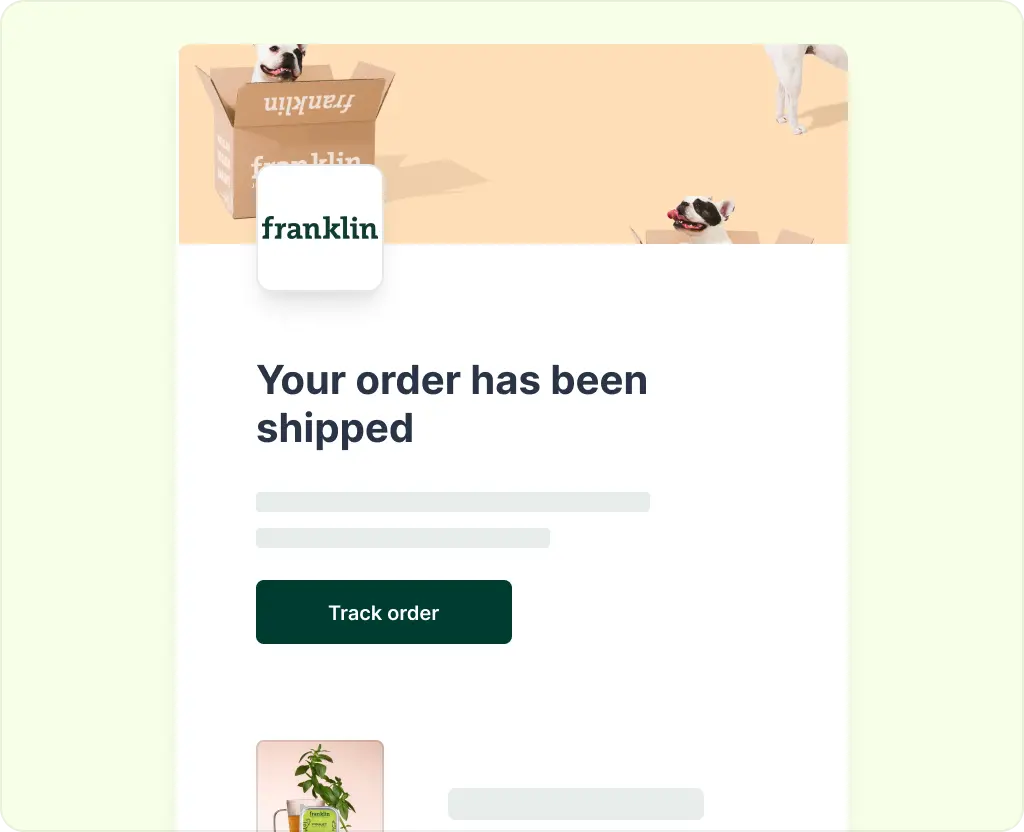
Use the editor to apply the store logo, colors, typography, and supported background options. The page should feel connected to the storefront without sacrificing readability.
Keep contrast high and avoid decorative elements that compete with the order progress. Customers visit this page to find specific information quickly.
Compatible apps can add functions or content to the page. Before adding a block, ask whether it helps the customer complete a post-purchase task. Useful additions may include delivery guidance, support information, or other order-related actions.
Too many banners, surveys, and promotions can bury the tracking details. The primary job of the page is still to explain the order.
Store policies can appear as footer links. Check that shipping, return, privacy, and contact information is current. A customer dealing with a delay or return should not have to search the storefront for the relevant policy.
The page also includes a Buy again option by default, which merchants can hide in the editor. Keep it when repeat purchases make sense, but do not let reordering distract from an unresolved delivery problem.
Old tutorials often tell merchants to paste code into the Order status page’s “Additional scripts” box. That guidance is outdated for the new pages. Shopify moved post-purchase customization toward blocks, pixels, and compatible apps, and the additional scripts area became view-only in 2025.
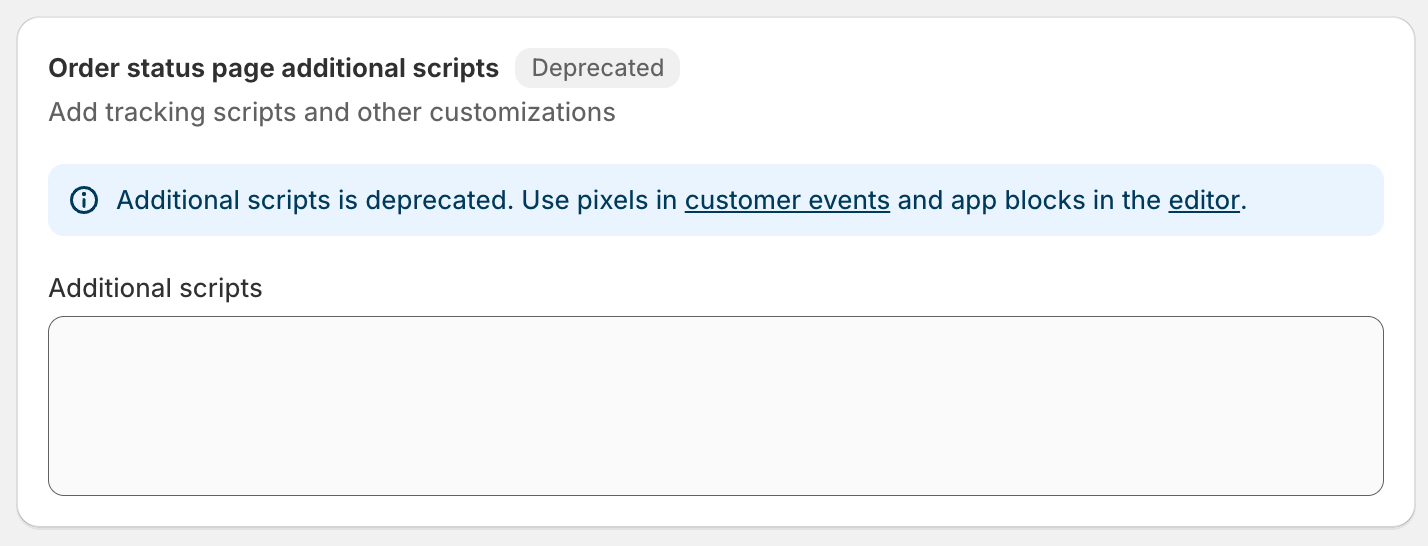
The non-Plus migration deadline passed on August 26, 2026. Merchants should now build and maintain customizations through the current checkout and accounts framework. If an old app or script no longer works, look for a compatible version or replacement instead of trying to add more legacy code.
Shopify’s native order status page covers the basic tracking journey, but growing stores often need more control. Customers may still leave the store to check a carrier page, contact support when an update is unclear, or miss an important delivery change. At the same time, merchants can struggle to spot delayed or failed shipments before complaints arrive.
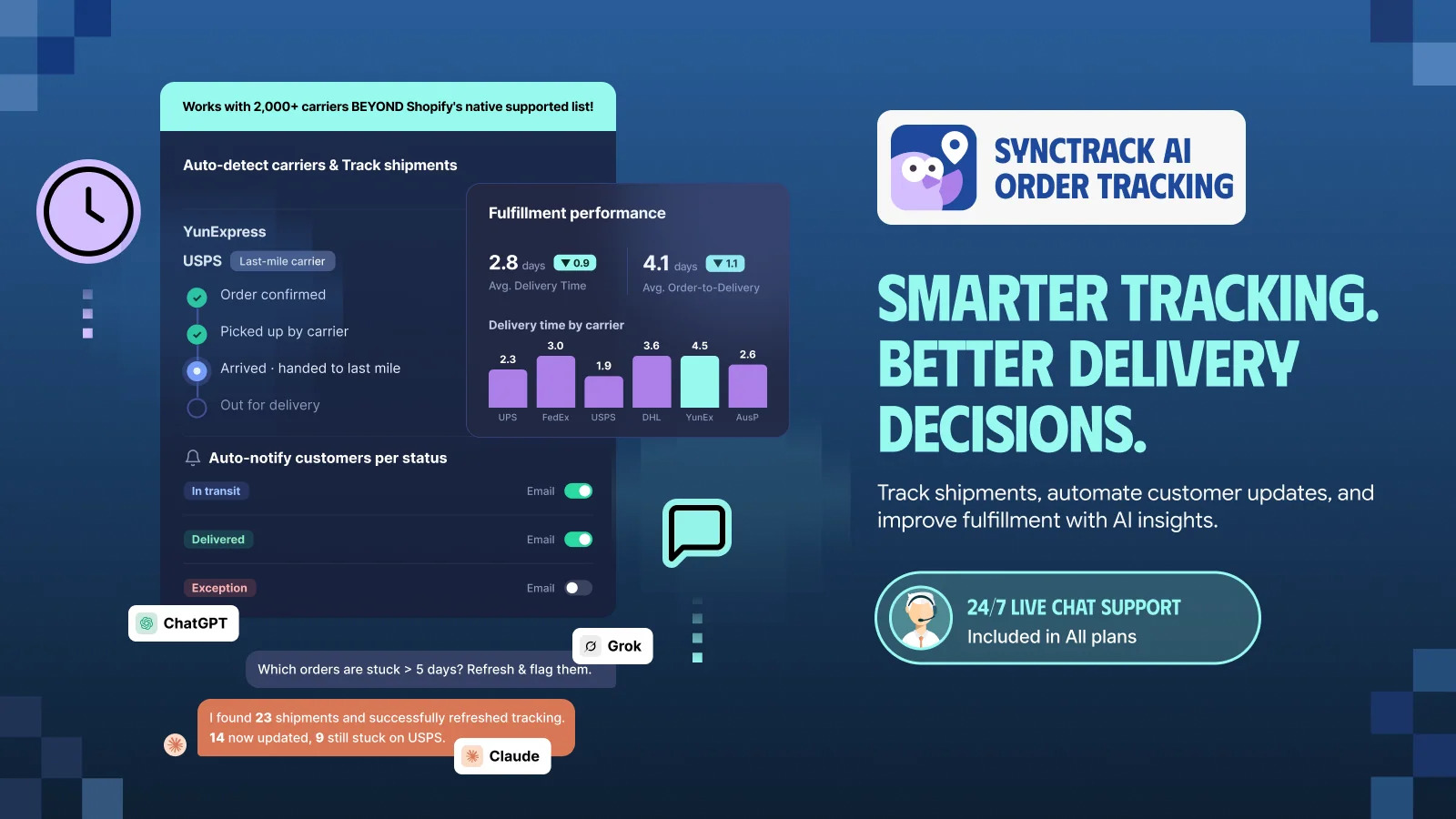
Synctrack Order Tracking brings these tasks into one post-purchase experience. It gives customers a branded tracking page where they can look up an order and follow real-time shipment updates without relying on a generic carrier page. The page can match the store’s branding, while estimated delivery dates and custom tracking statuses give customers clearer context about what is happening.
The app also sends automatic email notifications at key shipping milestones. Instead of repeatedly asking “Where is my order?”, customers receive updates and can return to the tracking page on their own. This helps reduce routine WISMO tickets and leaves the support team more time for cases that need human help.
For merchants, Synctrack adds a wider view of fulfillment performance. Its analytics can help teams review shipment status, carrier performance, delivery time, delays, failed delivery attempts, and exception patterns. Shopify Flow integration can also trigger workflows when a shipment status changes, making it easier to alert staff or connect tracking events with other tools.
Synctrack is most useful when the problem is not simply displaying a status, but managing the full communication gap after checkout. It keeps tracking connected to the store’s brand, gives customers a self-service way to find answers, and helps the team identify delivery issues earlier rather than waiting for support tickets to reveal them.
Delivery is not always the end of the order journey. A customer may need to return an item, exchange a size, or cancel an eligible unshipped item. Shopify supports self-serve return and cancellation requests from the order status page when merchants configure the feature and their rules.
Stores that need a broader return workflow can use a dedicated return-management app. Synctrack Returns & Exchanges provides a branded self-service portal where customers can look up an order, select items and reasons, request a refund or exchange, choose a return method, and track return progress. Merchants can set eligibility rules and manage options such as exchanges, store credit, return labels, and return shipping.
This does not replace outbound shipment tracking on Shopify’s order status page. It extends the post-purchase process after a customer decides to send an item back. Keeping those two jobs separate – delivery tracking and return management – makes the experience easier to understand.
Add the tracking number, carrier, and URL as soon as the shipment is genuinely handed off. Accurate data gives Shopify the best chance of showing useful updates and keeps email, account, and status-page information aligned.
A status such as “Delayed” tells the customer something went wrong but may not explain what to do. Use notification content or a support channel to explain the next step: wait for another scan, verify the address, contact the carrier, or contact the store after a stated time.
Do not promise a delivery date unless the data supports it. Clear, careful wording is better than an exact date the store cannot control.
Many customers open shipping emails on their phones. Test whether the current status, tracking link, item details, and support route are visible without excessive scrolling or zooming.
When items leave from different locations, customers may receive more than one tracking number. Shopify can create separate fulfillment sections on the status page. Make each shipment easy to identify and avoid sending messages that imply the whole order shipped when only one part did.
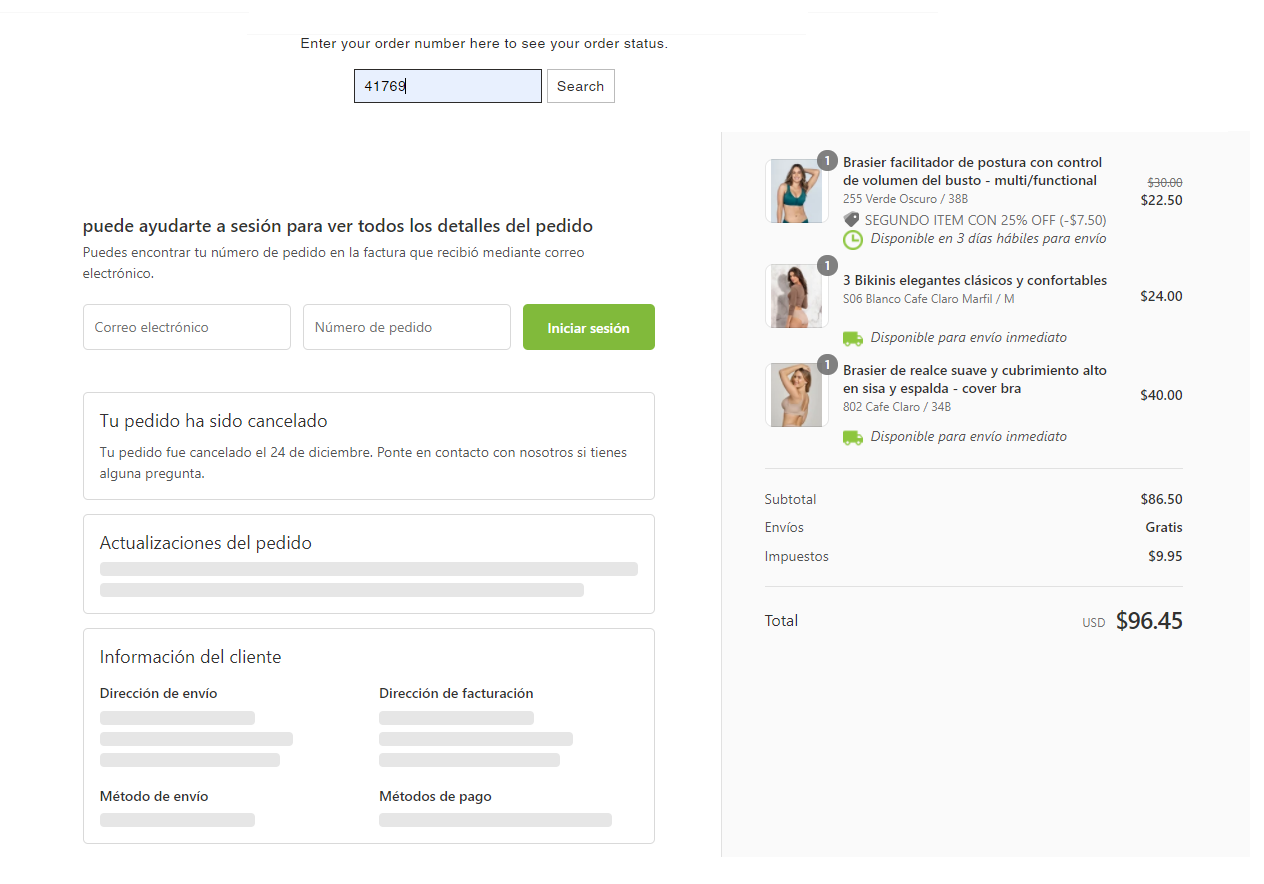
Even a well-built page cannot resolve every failed delivery, missing scan, or address problem. Give customers one clear support route and state what information to include, such as the order number and tracking number.
The Shopify order status page works best when it reflects what is actually happening. Add complete tracking information, use the right fulfillment timing, keep links and policies current, and test the journey from the customer’s point of view.
Most confusion disappears once merchants separate order, payment, fulfillment, delivery, and return statuses. Each category has a specific job. Together, they give staff a practical view of the work remaining and give customers a clearer picture of what happens after checkout.
When the outbound delivery is complete, the same standard should continue into returns. A structured self-service workflow, such as the one offered by Synctrack Returns & Exchanges, can help customers move from order lookup to return or exchange without starting a long support thread.