For high-volume merchants processing payments through PayPal and Stripe, payment disputes and failed tracking synchronization represent a persistent operational drain. A missed response deadline results in an automatic loss and forfeited revenue, while tracking sync errors can lead payment processors to hold funds on delivered orders. Until now, preventing these issues required store operators to perform manual dashboard checks at all hours, reviewing individual payment gateways to catch disputes and sync failures before they escalated.
The new Synctrack PayPal Tracking Sync integration with Shopify Flow transforms gateway monitoring into real-time store automation. Instead of spending valuable support hours manually inspecting dispute statuses and sync queues, merchants can now stream PayPal and Stripe order events directly into Shopify Flow. This allows your store to instantly alert support teams, tag high-risk buyers, and prevent chargeback losses the moment an event occurs.
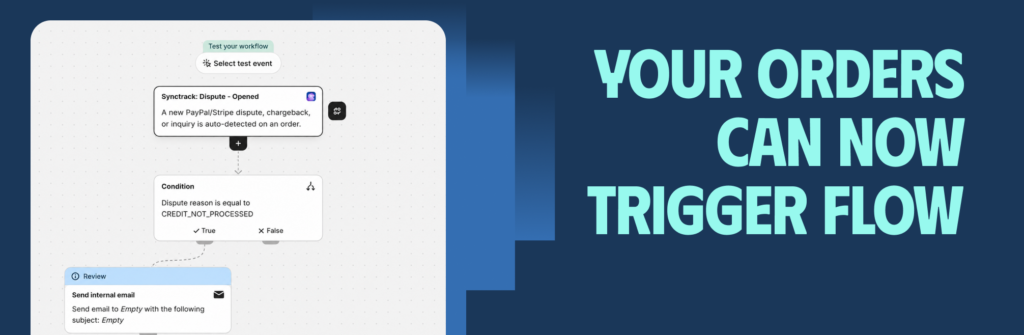
This release introduces 13 dedicated Synctrack triggers directly inside Shopify Flow, categorized into three operational areas: dispute management, tracking synchronization, and digital order handling. Rather than relying on periodic manual audits, these triggers fire in real time so your custom business logic executes automatically.
Dispute Triggers (8 Events): Keep dispute handling timely and organized across every stage of the dispute lifecycle.
Synctrack: Dispute - Opened
Synctrack: Dispute - Response deadline approaching
Synctrack: Dispute - Evidence submitted
Synctrack: Dispute - Escalated
Synctrack: Dispute - Status changed
Synctrack: Dispute - Appeal outcome
Synctrack: Dispute - Won
Synctrack: Dispute - Lost
Tracking Sync Triggers (4 Events): Maintain clean shipping records with payment gateways and eliminate un-synced orders.
Synctrack: Sync failures - Exceeded threshold
Synctrack: Transaction - Unmatched
Synctrack: Tracking sync - Completed
Synctrack: Tracking - Updated
Digital Order Trigger (1 Event): Prevent payment holds on non-physical products.
Synctrack: Digital order - Not syncedStandard Shopify order data does not provide historical chargeback patterns across external payment gateways. Synctrack bridges this visibility gap by attaching two proprietary buyer history signals to every trigger payload:
prior_dispute_count: Quantifies the exact number of disputes the customer has initiated in the past.
is_repeat_disputer: A boolean flag that marks whether the buyer has a history of repeated dispute filings.
These attributes allow merchants to branch workflows based on buyer risk profiles before issuing replacements or fulfilling additional orders.
To keep automations precise, Synctrack provides an extensive list of conditions that filter events based on gateway details, dispute status, and order properties:
Shared Conditions (Available on all triggers): Filter by gateway (e.g., PAYPAL), transaction amount, currency, and destination country.
Dispute Conditions: Branch by dispute phase, dispute reason, dispute status, dispute result, dispute response days left, dispute deadline, PayPal appeal status, prior dispute count, and is repeat disputer.
Sync Conditions: Branch by sync status, sync failed count, and carrier.
Digital Order Conditions: Branch by is digital order, has physical items, fulfillment type, digital sync enabled, and order not synced.
Managing payment operations across multiple external dashboards introduces human error, delayed responses, and unnecessary financial risk. Integrating Synctrack with Shopify Flow directly addresses these commercial pain points by tightening response windows and protecting working capital.
Zero Missed Deadlines on Gateway Disputes: Payment gateways operate on strict response clocks; failing to submit evidence in time leads to forfeited revenue and chargeback penalty fees. Triggering automated alerts for Dispute - Response deadline approaching ensures cases receive prompt internal review before deadlines expire.
Proactive Chargeback Risk Mitigation: Using is_repeat_disputer and prior_dispute_count, stores can automatically tag high-risk customers or place their pending orders on hold for manual fraud inspection, preventing serial disputers from repeatedly claiming refunds on fulfilled goods.
Faster Fund Releases and Resolution of Sync Failures: When tracking data fails to sync with PayPal, gateways may withhold merchant payouts. Automated alerts for sync threshold failures help fulfillment teams identify incorrect carrier selections or malformed tracking numbers immediately, keeping cash flow moving.
While this release does not ship with pre-built templates, merchants can easily construct custom automations inside Shopify Flow using Synctrack’s triggers and conditions. Below are three high-value workflows you can set up immediately:
Trigger: Synctrack: Dispute - Opened
Condition: is_repeat_disputer is true
Action: Tag the customer record with Chargeback risk and add an order note to review future transactions before fulfillment.
Trigger: Synctrack: Dispute - Opened
Condition: gateway is PAYPAL AND transaction amount is greater than your designated threshold (e.g., 100)
Action: Send an urgent notification via internal email or Slack with order details and dispute deadline timestamps.
Trigger: Synctrack: Sync failures - Exceeded threshold
Condition: sync failed count exceeds threshold
Action: Apply a Tracking Sync Review tag to the affected orders and notify the logistics team to verify tracking numbers and carrier mappings.
Setting up the integration takes approximately one minute and requires no custom development. Before configuring workflows, ensure your store is on a Shopify Basic plan or higher with the free Shopify Flow app installed.
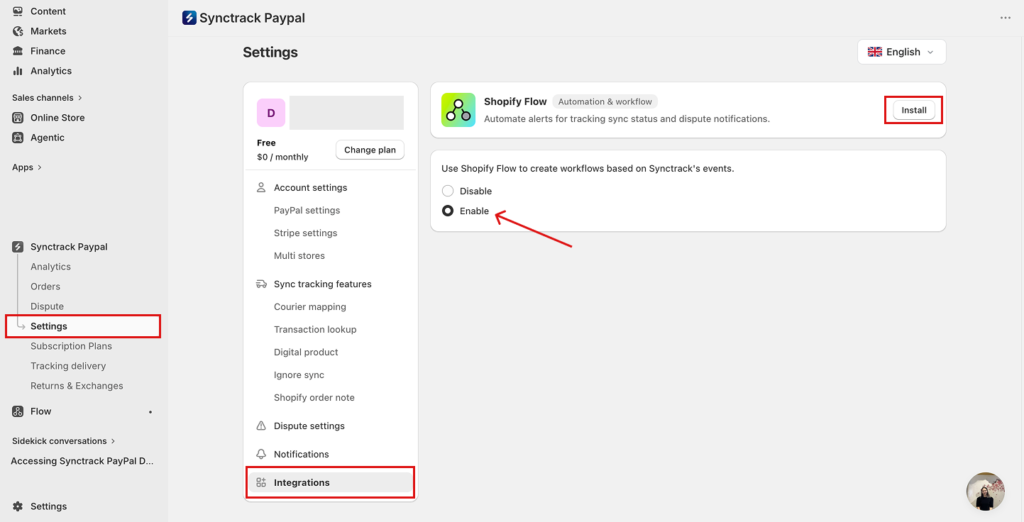
Open your Synctrack PayPal admin dashboard.
Navigate to Settings → Integration tab.
Locate the Shopify Flow card under the Automation & workflow section.
If you haven’t installed Shopify Flow yet, click Install to open its Shopify App Store listing.
Select Enable on the Shopify Flow card, then click Save.
(Note: The integration is opt-in and disabled by default. Synctrack only fires events to Flow while this setting is enabled; toggling it to Disable stops all event triggers immediately.)
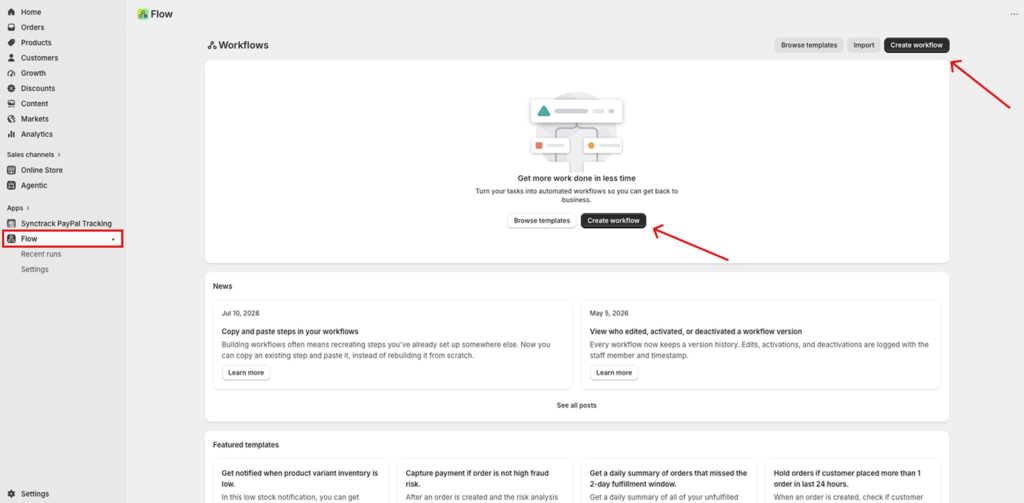
From your Shopify admin, open the Shopify Flow app and click Create workflow.
Click Select a trigger, search for Synctrack, and choose the relevant trigger (e.g., Synctrack: Dispute - Opened).
Click Condition to define criteria using Synctrack fields (e.g., gateway equals PAYPAL, transaction_amount > 100, or is_repeat_disputer equals true).
Click Action and select the desired outcome—such as tagging an order, sending an internal email, or notifying a team channel.
Click Turn on workflow to activate the automation.
The Shopify Flow integration is available to all merchants across every Synctrack PayPal plan, including the Free plan. Shopify Flow itself is free to use but requires an active Shopify Basic plan or higher.
To start automating your dispute and tracking operations, navigate to your Synctrack settings and turn on the integration today.