Managing customer disputes across multiple payment gateways often pulls e-commerce teams away from where their daily fulfillment happens: the Shopify admin. When dispute alerts remain siloed inside PayPal or Stripe dashboards, support agents and warehouse staff operate in the dark. This disconnect frequently leads to expensive fulfillment mistakes, such as issuing a standard store refund while a payment dispute is already active, or dispatching replacement inventory for an order currently under review.
Synctrack PayPal eliminates this operational friction by syncing dispute events, tracking statuses, and lifecycle tags directly onto your Shopify orders in real time. Your team gets complete visibility into open disputes, submitted evidence, and dispute outcomes without ever leaving Shopify, keeping your fulfillment workflow fast, informed, and error-free.
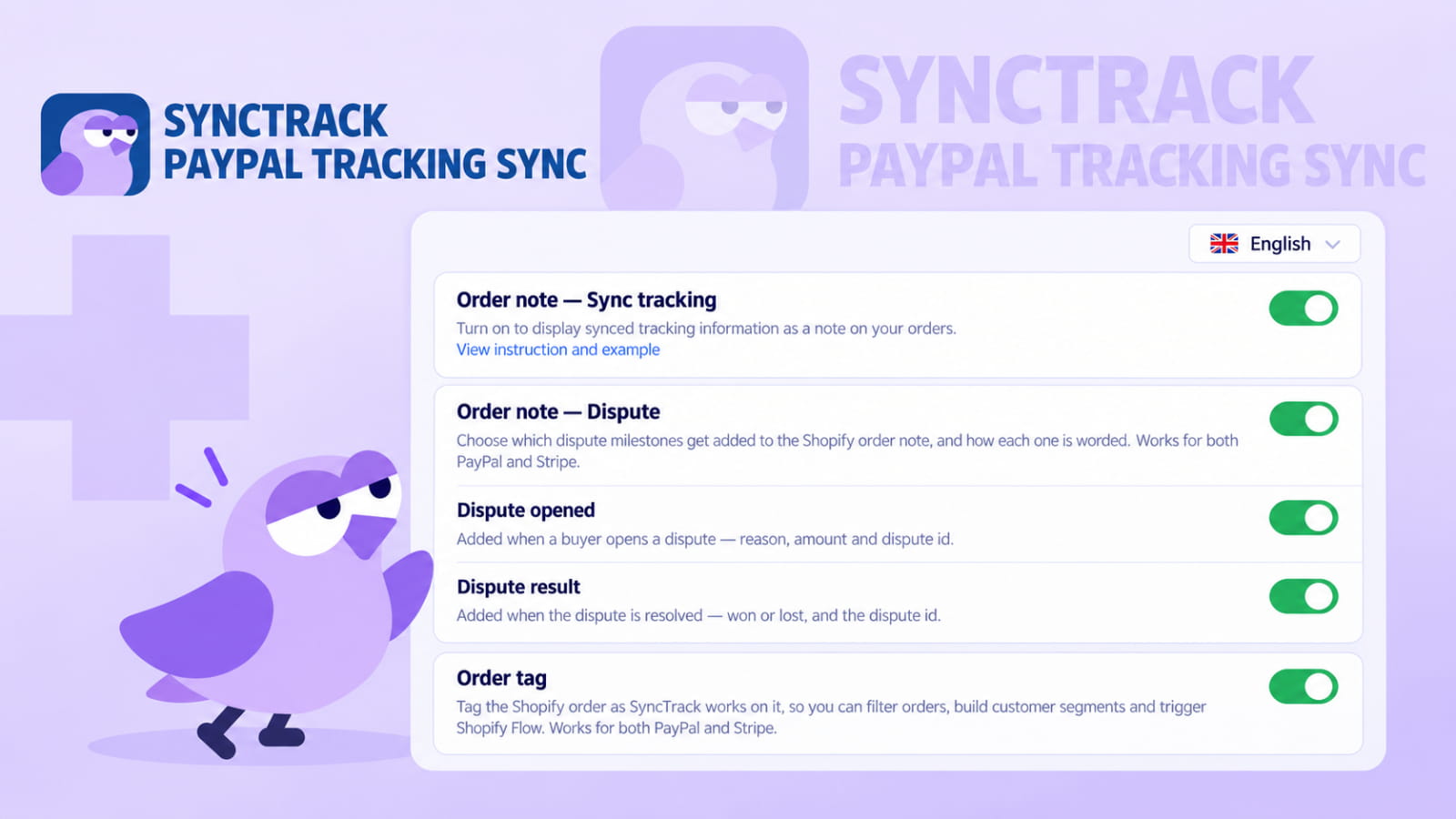
This release bridges payment gateway dispute tracking and Shopify order management through automated notes, customizable message templates, and automated event tags. Below is a breakdown of the new capabilities available on Pro plans and above.
Synctrack automatically writes dispute milestones directly into the native Notes field of the matching Shopify order for both PayPal and Stripe transactions:
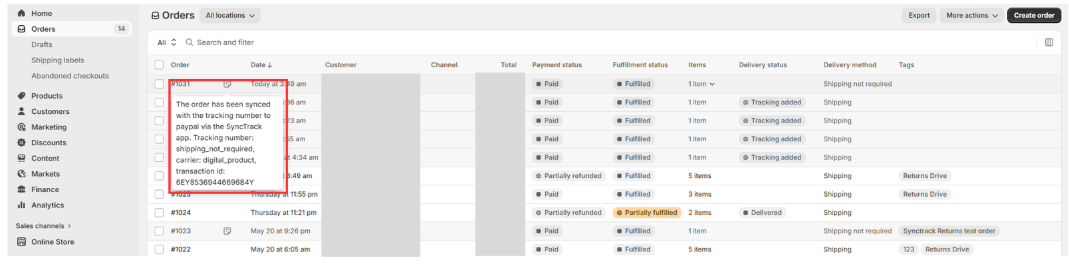
Every note generated by Synctrack can be customized to match your store’s internal terminology, formatting requirements, or language:
Dynamic Variable Chips: Click dynamic chips to insert live gateway data, including {{gateway}}, {{tracking_number}}, {{courier_name}}, {{transaction_id}}, {{dispute_reason}}, {{dispute_amount}}, {{dispute_currency}}, {{dispute_id}}, and {{dispute_result}}.
Smart Fallback Formatting: If a variable has no value for a specific order, Synctrack cleanly omits the surrounding phrase so your team never sees dangling labels like transaction id:.
500-Character Limit and Reset Controls: Templates accommodate up to 500 characters, and you can revert back to original wording at any time using the Reset to default button.
Tracking Note Update: The default tracking sync note is now streamlined into a single line. If your fulfillment workflow requires the courier name, tracking number, or transaction ID, simply insert those variables into your template.
While order notes provide readable details for customer support, order tags enable instant filtering, custom fulfillment views, and automated Shopify Flow triggers. Synctrack tags orders across five distinct events:
synctrack-tracking-synced: Applied when tracking details sync to PayPal or Stripe.synctrack-dispute-open: Applied immediately when a dispute is opened by a customer.synctrack-evidence-sent: Applied once dispute evidence has been submitted to the gateway.synctrack-dispute-won: Applied when a dispute is won or canceled by the buyer (replaces synctrack-dispute-open).synctrack-dispute-lost: Applied when a dispute is lost (replaces synctrack-dispute-open).Fragmented dispute information directly impacts a store’s bottom line through duplicated inventory losses and mishandled customer service interactions. Bringing dispute records and lifecycle tags directly into Shopify orders resolves key merchant pain points:
synctrack-dispute-open and carries an automated note, warehouse staff and support agents immediately know not to dispatch replacement items or issue in-store refunds for disputed funds.The dispute notes and event tagging features are available for merchants on the Pro plan and above. To begin logging events, activate the settings in your Synctrack dashboard – the app will begin recording notes and tags for all new events that occur on identifiable orders from the activation date onward.
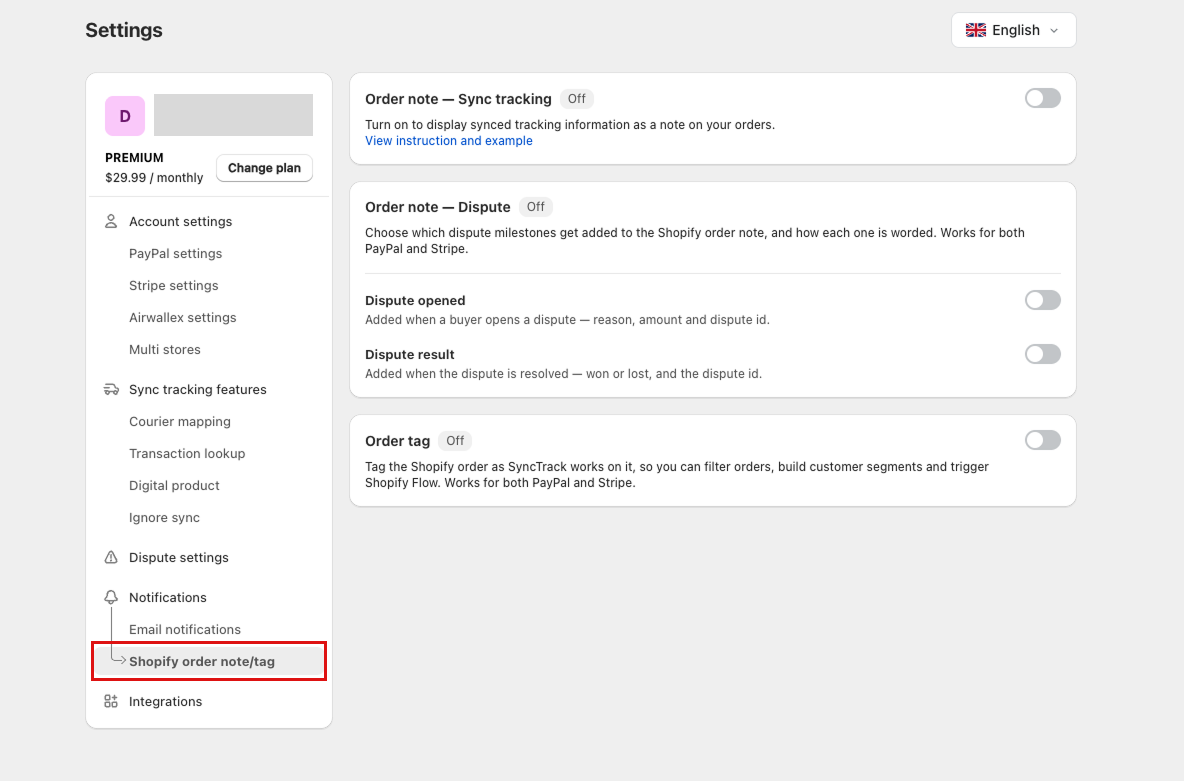
Step-by-Step Setup Guide
Synctrack includes several built-in guardrails to protect your order data and prevent clutter in your Shopify admin:
synctrack- prefix, leaving your existing product, shipping, or staff tags untouched.Stop switching between gateway dashboards to check chargeback statuses. With automated dispute notes, dynamic templates, and milestone tags, your team can manage order risks directly inside the Shopify admin.