“Where’s my package?” Every Shopify merchant knows that ticket. Someone opens the admin, hunts down the order, checks the carrier, and types a reply – over and over, for hours. There’s a faster way now. With the Claude Shopify connection through MCP (Model Context Protocol), you can ask Claude Desktop plain questions like “Which orders are delayed today?” and get real answers pulled straight from your store data.
This guide covers it all: what Claude Desktop and MCP do, how to connect them to Shopify, and how Synctrack Order Tracking’s AI Assistant makes tracking even easier.
Contents
Claude Desktop is an app you install on your computer (macOS or Windows). At first glance, it looks just like Claude in your browser at claude.ai – same chat window, same AI models. The real difference is how each one connects to outside data like your Shopify store.
To track orders or manage your store with AI, you use something called the Model Context Protocol (MCP). And there are two ways to connect through MCP. Knowing the difference is the key to understanding which version of Claude you need.
A “local” connection runs right on your own computer, in the background. To set it up, you edit a file called claude_desktop_config.json and tell Claude where to find the server – for example, a small Node.js script that links to Shopify.
Since this server lives on your computer, only the Claude Desktop app can reach it. The browser version has no way to talk to something running on your laptop. This method is free and fully customizable, which makes it popular with developers.
A “remote” connection runs in the cloud instead of on your computer. Because it’s online, it works on both the claude.ai browser and the Claude Desktop app.
There’s no file to edit and no code to run. You just click to approve the connection. The one catch: Anthropic only allows these remote connections on paid plans (Pro, Team, or Enterprise). Tools like Synctrack Order Tracking’s AI Assistant, Supermetrics, and Porter Metrics all use this method to give you a fast, no-code setup.
Here’s the simple breakdown:
| Feature | Local connection | Remote connection |
| Works on Claude Desktop? | Yes | Yes |
| Works in the browser? | No | Yes |
| Setup | Edit a config file | One-click approval |
| Cost | Free (works on free plan) | Needs a paid plan |
| Best for | Developers who want full control | Merchants who want it fast and easy |
The rule is easy to remember. If your work means connecting to live data, like your Shopify orders, use Claude Desktop. The browser version is great for chatting, writing, and brainstorming, but it can’t “see” your store in real time.
The Model Context Protocol (MCP) is an open standard from Anthropic, launched in November 2024. In plain terms, it’s a shared “language” that lets AI assistants connect to outside systems and pull in real data.
Think of MCP like a USB-C port for AI. One USB-C cable charges all your devices. In the same way, MCP gives an AI model like Claude one standard way to plug into any data source – your files, a database, or your Shopify store’s Admin API.
Before MCP, every connection had to be hand-built. A developer wrote one chunk of code to link Claude to Shopify, then another chunk for the next tool. It was slow and hard to grow. MCP solves this. A tool maker builds one MCP server, and any MCP-ready app can connect to it – including Claude Desktop, ChatGPT, Cursor, and Perplexity.
For Shopify merchants, this changes your day-to-day work. No more exporting CSV files, switching tabs, or waiting on reports. You ask a question and get a live answer from your store. MCP also works two ways: Claude can read your order details and, with your okay, take actions too – like adding an order note or drafting a customer reply.
There’s more than one way to connect Claude to your Shopify store. Here are the main options merchants use today:
Which one is right for you comes down to two things: how comfortable you are with tech, and what data you need. Next, we’ll walk through the two most common setups – a self-hosted one for developers, and a no-code one for everyone else.
This method gives you the most control, and it’s free. Plan for about 30 minutes. You’ll need to be comfortable editing a text file, but you don’t need to be an expert coder.
Go to claude.ai/download and grab the version for your system, either macOS or Windows. Install it and log in to your Claude account. The free Claude plan works for basic MCP connections. A Pro account gives you higher usage limits if you need them.
Claude needs API credentials to reach your store. You create those by setting up a custom app:
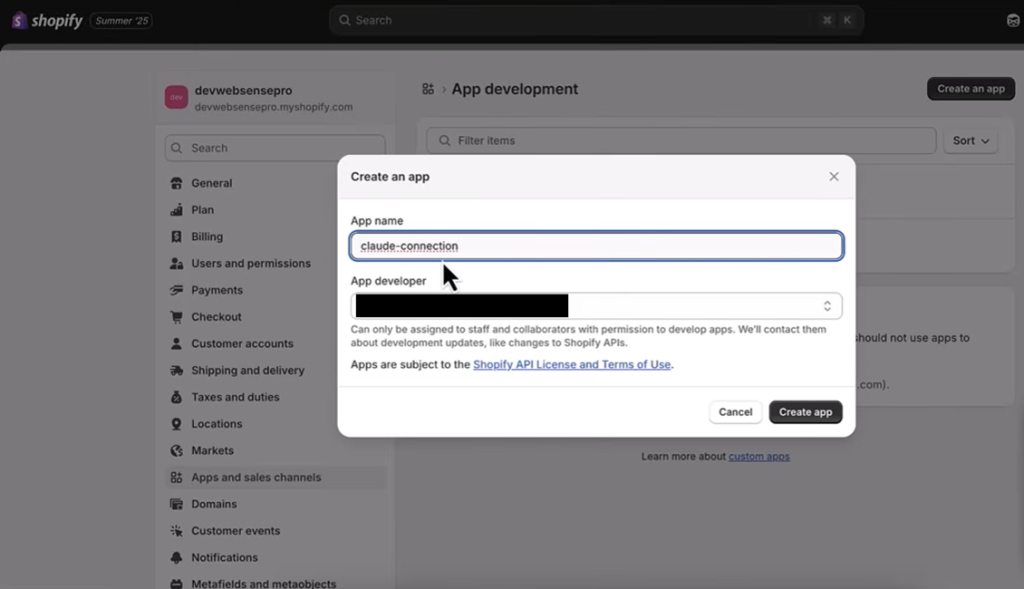
Scopes decide what Claude is allowed to see. Grant only what you need for order tracking:
read_orders (required)write_orders (optional, for updating order notes)read_customers (helpful for customer context)read_products (helpful for product details on each order)read_inventory (optional, for stock-level questions)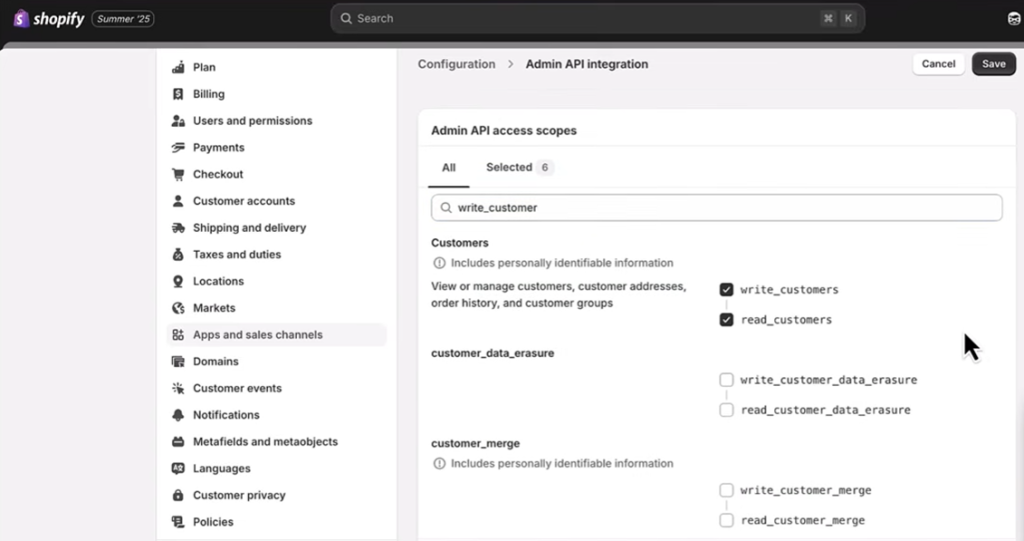
Search for each scope, check the box, and click Save. Keeping the list short is good practice. Give Claude access to what it needs and nothing more.
shpat_ and Shopify will never show it again.Save the token somewhere safe, like a password manager. Treat it like a key to your store, because that’s exactly what it is.
This is where you tell Claude Desktop about your MCP server. Find the config file here:
~/Library/Application Support/Claude/claude_desktop_config.json%APPDATA%\Claude\claude_desktop_config.jsonOpen it in any text editor, such as VS Code, Notepad++, or plain Notepad. Paste in the code below and swap in your own token and store URL:
{
  "mcpServers": {
    "shopify": {
      "command": "npx",
      "args": [
        "shopify-mcp",
        "--accessToken", "shpat_YOUR_TOKEN_HERE",
        "--domain", "your-store-name.myshopify.com"
      ]
    }
  }
}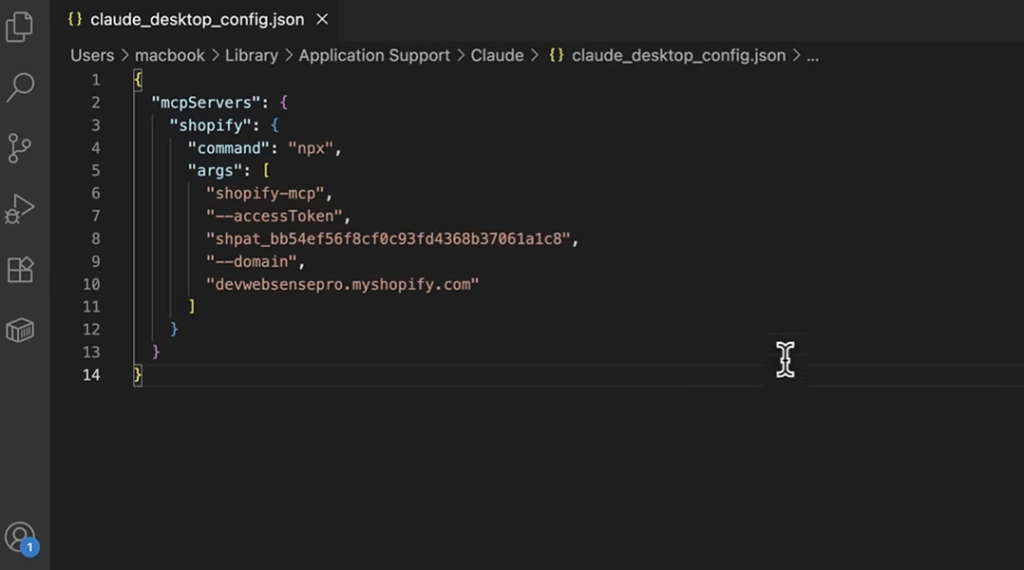
Save the file. Then fully quit Claude Desktop before you open it again. A simple close isn’t enough; quit it completely so the new settings load.
If those tools show up, your connection is live.
Test it with a simple prompt:
“Please pull the last 5 orders from my Shopify store and summarize their status.”
Claude will ask for permission to use the tool. Click Allow once or Allow always. In a few seconds, you’ll get real order data from your store, laid out in a clean, readable format. If that works, your setup is done.
If editing a config file sounds like too much, several managed tools handle the technical part for you. No JSON, no tokens to copy by hand.
These tools are a good fit if you want to store data in Claude quickly and don’t want to touch any settings files.
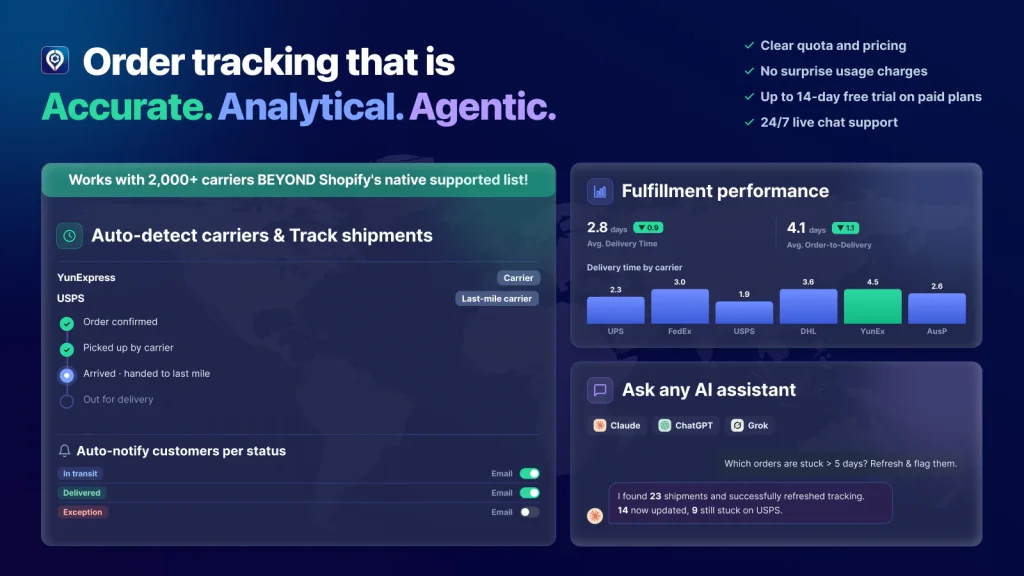
The self-hosted setup is flexible, but it has one limit worth knowing. It reads the order data inside your Shopify admin, but it doesn’t include carrier-level tracking, like live transit events or delay detection. If your team needs real shipment tracking, a purpose-built app is the better fit.
Synctrack Order Tracking released its native AI Assistant in June 2026, built to solve one clear problem: the endless flow of shipping-related support tickets. It runs on MCP, so it plugs Synctrack’s real-time carrier data straight into the AI tools your team already uses.
Instead of bouncing between your helpdesk, the Synctrack dashboard, and the carrier portal, your team can pull live shipment data right into Claude Desktop, Claude.ai, ChatGPT, Perplexity, Grok, and Cursor. It all works through plain language. A few examples:
The AI reads the actual tracking information and writes the customer response in one step. No copy-paste, no tab-switching.
Synctrack’s deepest integration is with Claude.ai and Claude Desktop. If you have a paid Claude account (Pro, Team, or Enterprise), the setup takes seconds:
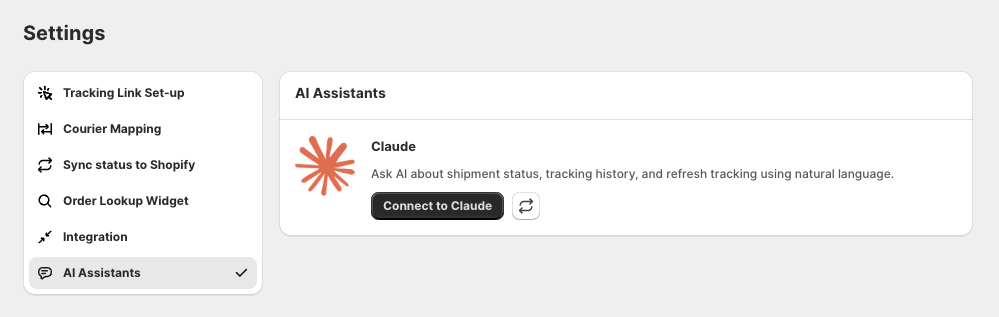
That’s the whole process. No config files, no tokens to copy, no Node.js to install.
Because Synctrack is built on the open MCP standard, it connects to almost any AI workspace:
For any tool not on the list, copy your unique Synctrack MCP URL from the dashboard and paste it into that provider’s connector settings.
The AI Assistant is free and available on every Synctrack plan, from Free and Launch to Scale and Pro. It doesn’t count against your Synctrack order quota.
Your store data is handled carefully at the protocol level:
Here’s how the main options stack up so you can pick the one that fits your team:
| Method | Setup Time | Skill Level | Data Coverage | Cost |
| Synctrack AI Assistant + Claude | 30 seconds | None (click to connect) | Real carrier tracking | Free on Synctrack |
| Third-party connectors | 2–5 minutes | Beginner | Shopify Admin data | Free tier available |
| Self-hosted MCP (shopify-mcp) | 20–30 minutes | Intermediate | Shopify Admin data | Free |
For most merchants who mainly want to track orders, handle support tickets, and watch carrier performance through Claude, Synctrack’s AI Assistant is the fastest, most purpose-built path. For merchants who also want to manage inventory, write product descriptions, and review SEO, a broader MCP connector with Claude Desktop opens up the full range.
After Claude Desktop is linked to your store, the range of order-tracking questions you can ask is wide. Here are the most useful ones for operations and support teams.
Each of these used to mean clicking through several screens. Now it’s a single question. Merchants who fold Claude into their daily store routine often report cutting hours of manual dashboard work each week, since one prompt replaces a stack of tabs.
Conclusion
The Claude Shopify connection has changed what order tracking looks like. With MCP, Claude Desktop stops being a general chatbot and starts working like a teammate who knows your real order statuses, carrier performance, and customer history. If you want the fastest path, Synctrack Order Tracking’s AI Assistant gives you a one-click connection, real carrier data, and strong security – free on every plan, with no setup.
So go connect your store and ask your first question. The days of opening 15 tabs to close one support ticket are done.
Read More: MCP Tracking: Order Tracking With MCPs AI In 2026