Up until now, managing a Stripe chargeback meant interrupting your workflow. You had to leave Synctrack, dig up tracking numbers, race against a ticking clock in your Stripe dashboard, and hope you didn’t miss a crucial detail before hitting submit.
That ends today.
We are thrilled to announce that Stripe Dispute Management is officially live inside Synctrack PayPal Tracking Sync. Now, you can track, manage, and win both your PayPal and Stripe disputes from a single, unified dashboard.
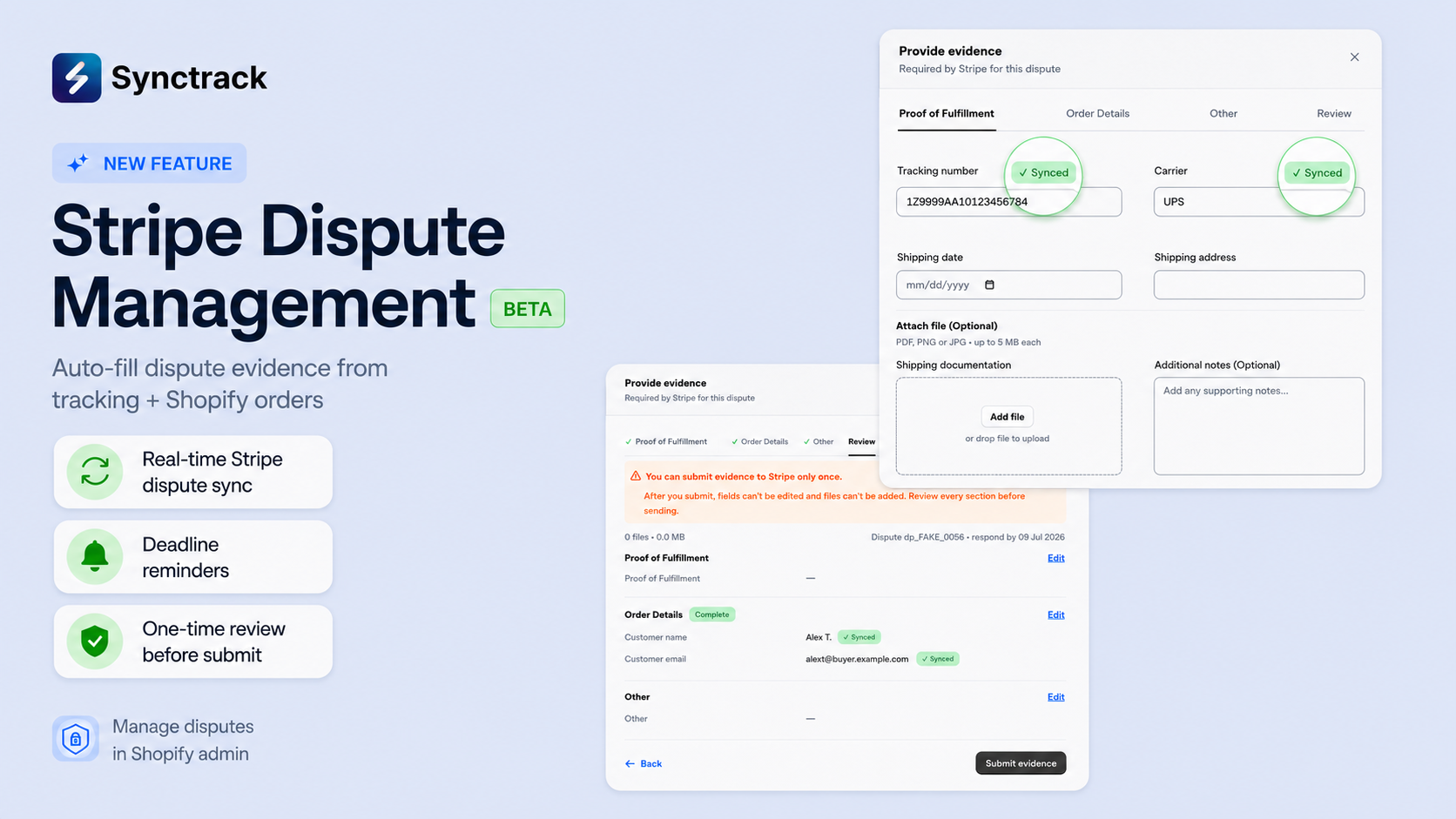
Most merchants don’t lose disputes because the customer was right. They lose because their evidence packet was incomplete, submitted late, or built in a panic.
Stripe gives you a strict 7 to 21-day window, allows only one submission, and the bank’s decision rests entirely on the quality of your evidence. We built this integration with one clear target in mind: helping merchants achieve a +20% win rate.
Here is how Synctrack turns dispute management from a headache into a 5-minute task:
| Feature | The Old Way | The Synctrack Way |
| Dashboard | Logging into multiple platforms. | Unified PayPal, Stripe, and Shopify Payments. |
| Speed | 30-45 minutes of manual copying/pasting. | Under 5 minutes per dispute. |
| Evidence | Manual lookups for tracking and order info. | 70–80% Auto-filled directly from Shopify. |
| Deadlines | Easy to miss or rush at the last second. | Real-time countdowns and alerts (T-48h and T-5m). |

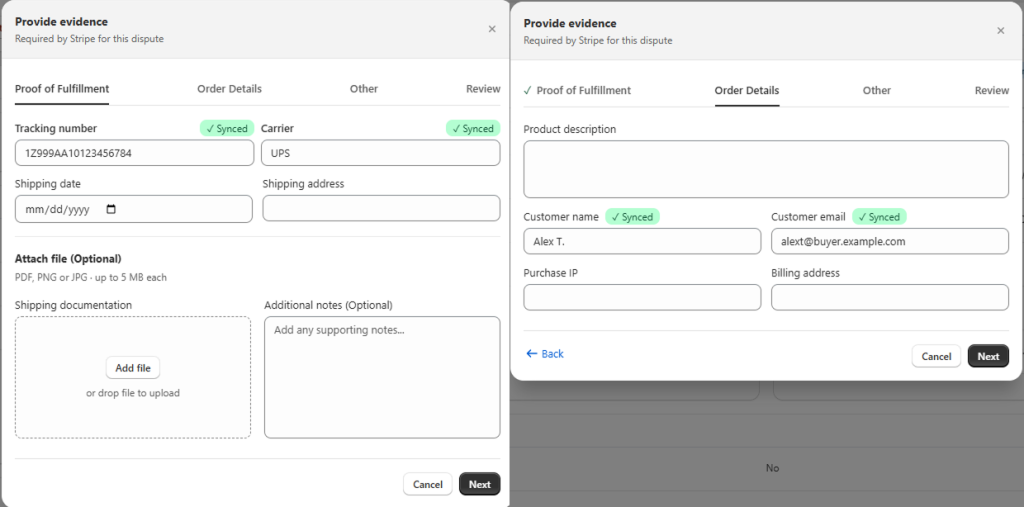
The moment a Stripe dispute is opened, Synctrack automatically compiles your Shopify order data and tracking history. When you open the dispute to respond, 70% to 80% of the evidence fields are already filled in for you:
Because Stripe only allows one submission per dispute, mistakes are costly. Synctrack lets you save your progress as a draft. You can exit, gather more info, and review everything carefully before committing your final response.
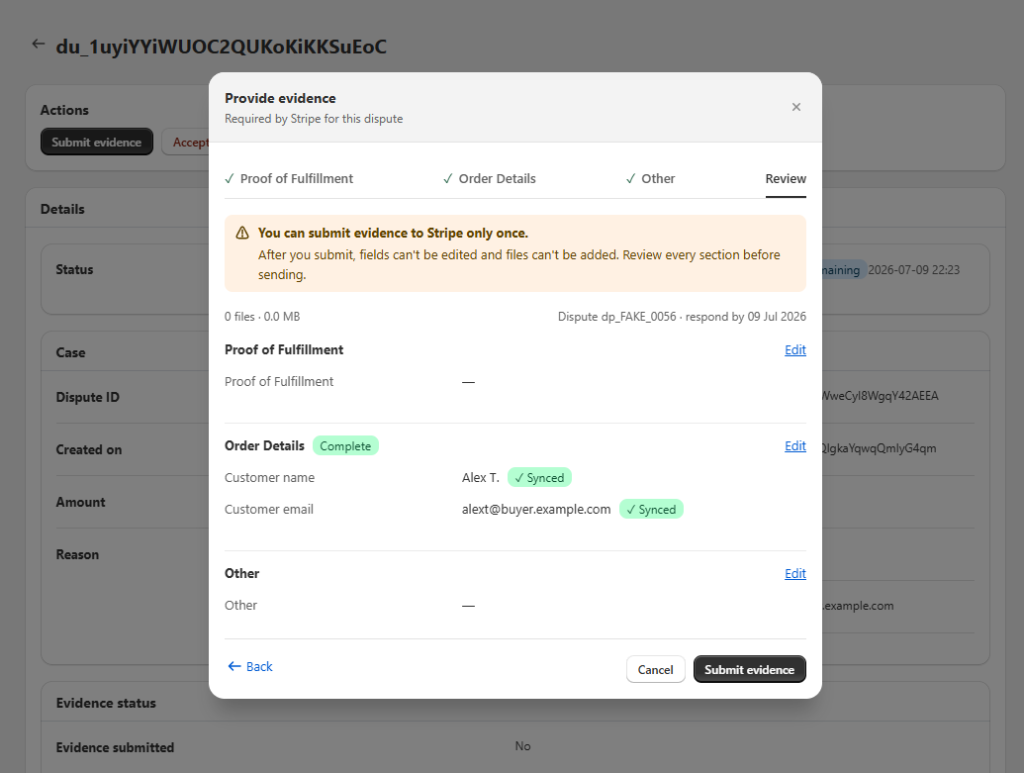
Never let a deadline slip by again. Synctrack keeps you on track with active dashboard countdowns and automated email alerts sent at 48 hours and 5 minutes before the submission window closes.
⚠️ Good to Know Before You Start
Need to concede a charge? Simply click Accept dispute. A quick two-step confirmation ensures you never accidentally accept a chargeback by mistake.
This feature is currently marked with a BETA tag in-app. The core system is fully built and active, but we want real merchant disputes to prove its power.
We want to hear from you: Where does this new workflow save you the most time, and what can we improve to make managing your store even smoother?
|
Turn on Stripe Dispute Management in Synctrack When a dispute opens, Synctrack catches it, tells you, and has your evidence ready before the clock becomes a problem. Every new dispute lands in your Disputes List automatically |